Choose Your Dashboard
OCG has three dashboards, each supporting a different kind of work: personal tasks (User),
alliance management (Alliance), and group or event management (Group).
How to Pick the Right Workspace
Start with what you need to do, not the menu label. This matrix combines tasks, access, and expected outcomes in one view:
| If you need to... | Use this dashboard | Who gets it | Core outcomes |
|---|---|---|---|
| Manage your profile, invitations, proposals, submissions, and your own audit history | User Dashboard | Any logged-in user | Keep profile current, accept invitations, submit to CFS, review your actions |
| Manage alliance-wide identity, admins, taxonomy, analytics, groups, and alliance audit logs | Alliance Dashboard | Alliance team members | Manage team access, branding, regions, categories, analytics, groups, and review alliance actions |
| Run events, organizers, members, sponsors, and group audit review | Group Dashboard | Group team members | Deliver events, manage members, coordinate organizers and sponsors, and review group actions |
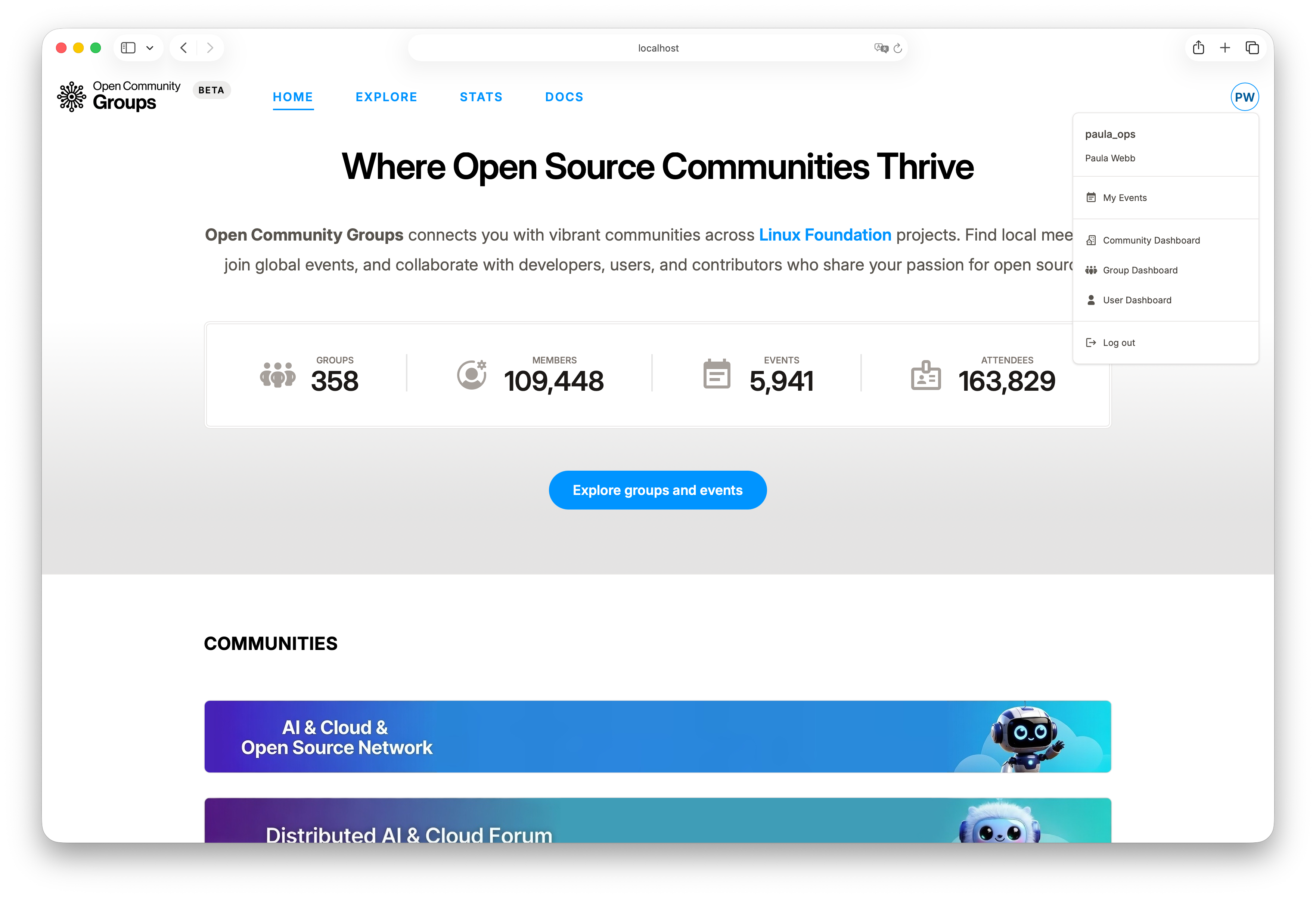
Guide deep-dives:
- Public Site Guide
- User Dashboard Guide
- Alliance Dashboard Guide
- Group Dashboard Guide
- Event Operations
Access Model and Why It Matters
Dashboard visibility depends on your role. If a dashboard is missing from your menu, your account does not currently have access to it.
The two organizer dashboards also depend on selected context:
- Alliance Dashboard requires a selected alliance.
- Group Dashboard requires both a selected alliance and a selected group.
If the right context is not selected yet, some organizer actions stay unavailable until you choose the needed alliance or group.
!> Missing dashboard entries usually mean you either do not have access yet or have not selected the right context. Alliance Dashboard needs a selected alliance. Group Dashboard needs both a selected alliance and a selected group.
Fixed Role Model
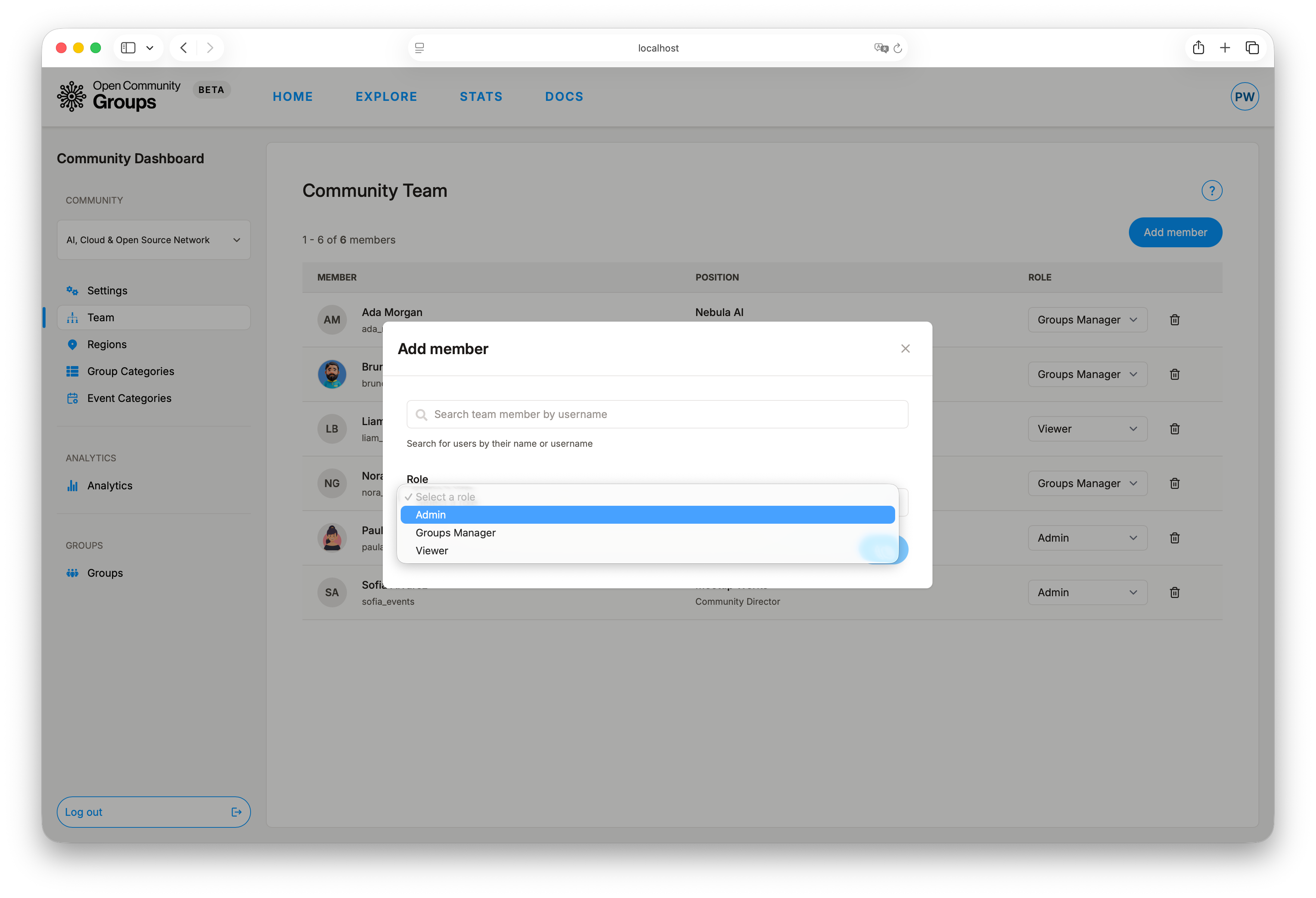
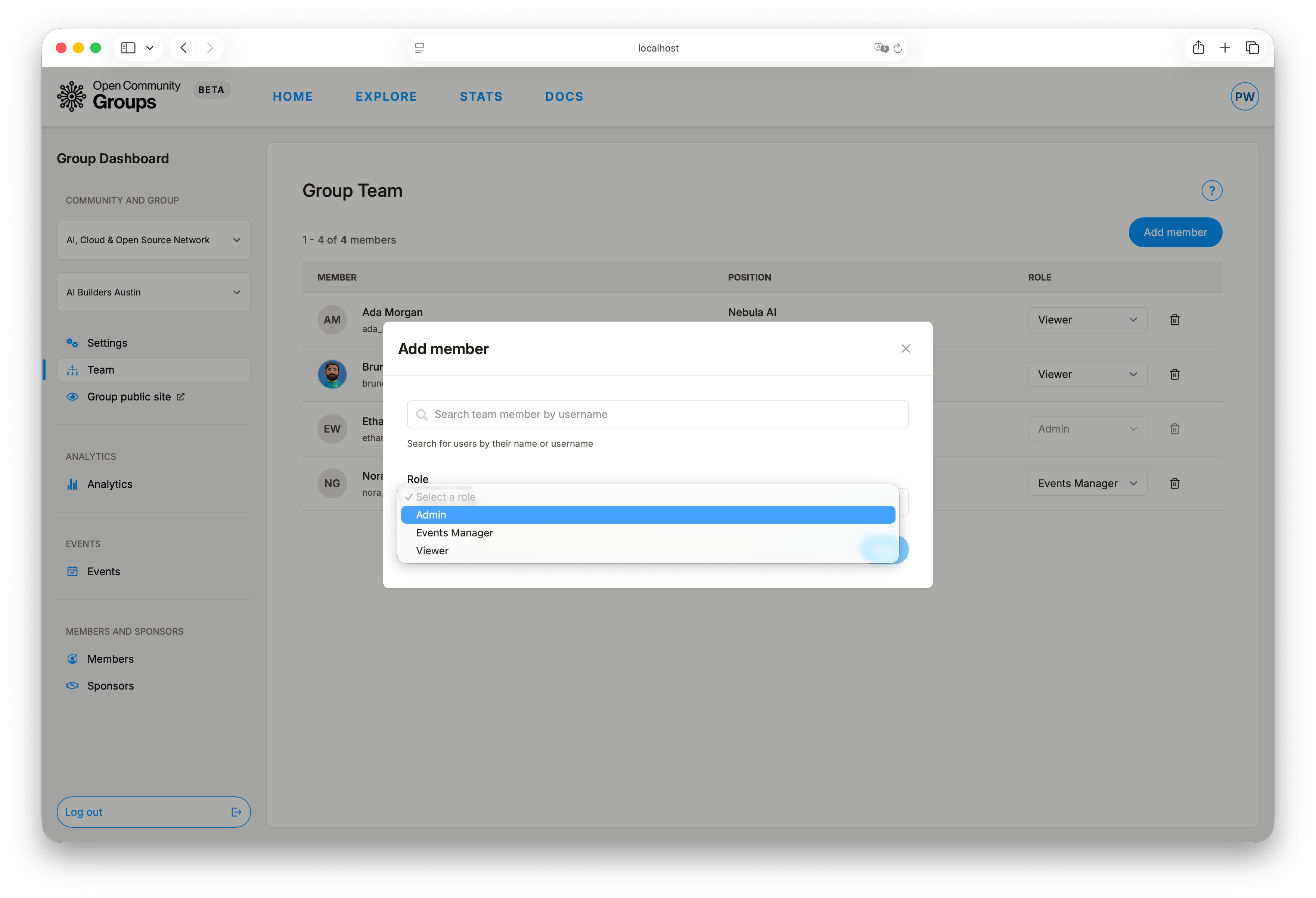
OCG now uses fixed roles for alliance and group management. Roles are assigned per team member and define what operations are allowed.
Alliance team roles:
| Role | What it can do |
|---|---|
admin |
Full alliance management (settings, taxonomy, team, groups) and group-level write operations in that alliance |
groups-manager |
Manage groups and group-level write operations in that alliance, without alliance settings/taxonomy/team control |
viewer |
Read-only access |
Group team roles:
| Role | What it can do |
|---|---|
admin |
Full group management (events, members, settings, sponsors, team) |
events-manager |
Event operations only (events) |
viewer |
Read-only access |
UI behavior:
- Controls are disabled when your role cannot perform an operation.
- Alliances can restrict group team management to alliance
adminandgroups-managerroles. - Server-side authorization still enforces permissions even if a request is sent manually.
If a Dashboard Is Missing
Use this order to unblock quickly:
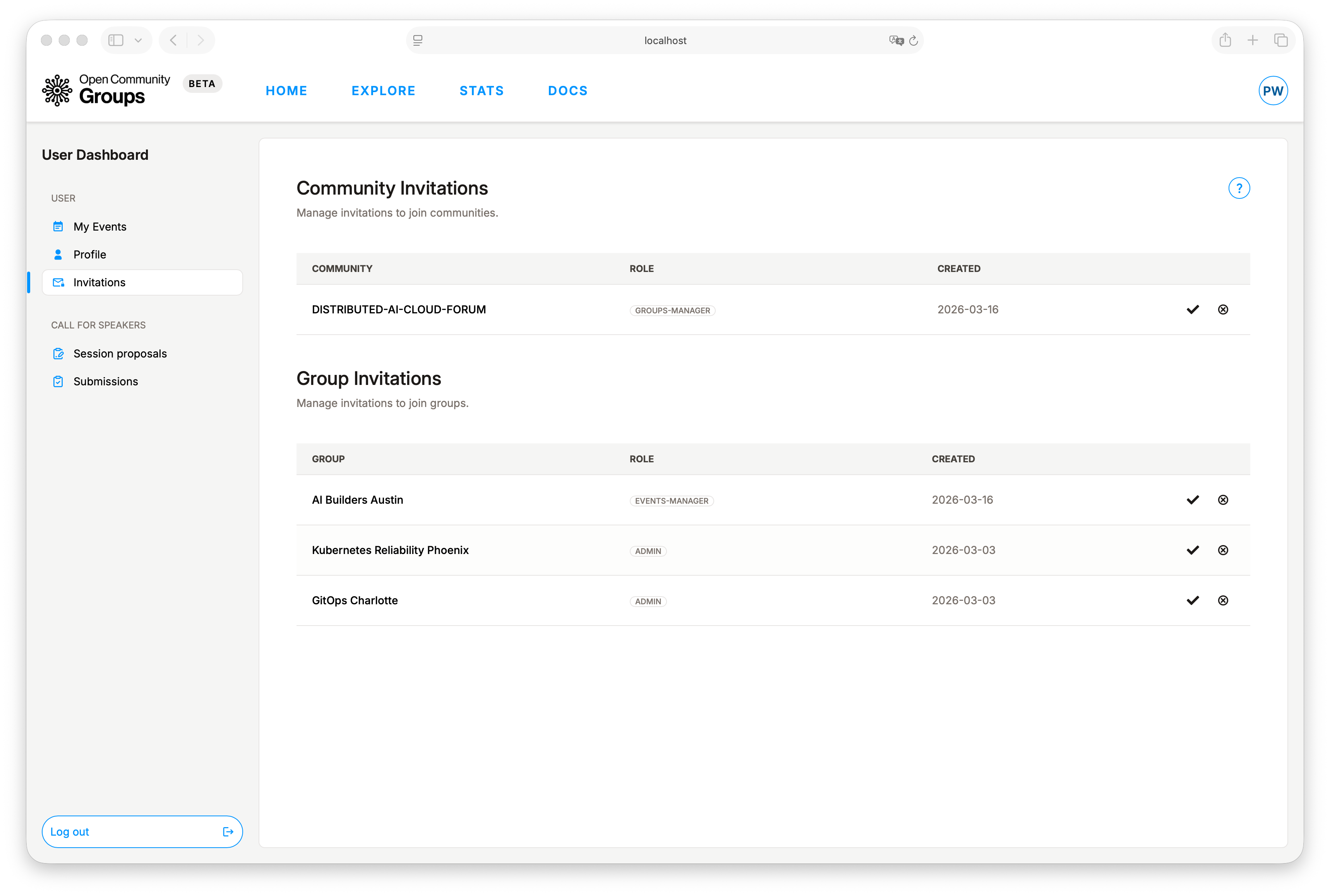
- Open User Dashboard -> Invitations.
- Accept pending alliance/group invitations.
- Refresh the page (or sign out/in).
- Re-open your avatar menu and check for new dashboard entries.
If visibility still does not update, use Troubleshooting.
Typical Starting Paths
Member or speaker path
Start in User Dashboard, complete your profile, then create session proposals only when you need to submit to event CFS.
Continue with User Dashboard Guide and Public Site Guide.
Alliance lead path
Start in Alliance Dashboard to verify settings and team membership first, then review Regions, Group Categories, and Event Categories. Move to Groups after taxonomy and ownership structure are in place. Use Logs when you need a historical view of alliance dashboard activity.
Continue with Alliance Dashboard Guide.
Group organizer path
Start in Group Dashboard and move straight into Events, because event setup, publishing, attendance, and submissions are the operational center of group work. Use Logs when you need a historical view of group dashboard activity.
Continue with Group Dashboard Guide and Event Operations.