Group Dashboard Guide
Use the Group Dashboard to run your group day to day. This is where organizers manage events, team coordination, member communication, and sponsors.
If you are still selecting the right workspace, read Choose Your Dashboard.
Path: /dashboard/group
Sections:
What This Dashboard Owns
The alliance dashboard sets shared structure. The group dashboard is where you run the group.
Main areas:
- Settings: group identity and public profile quality.
- Team: organizer membership and roles.
- Analytics: group-level growth trends.
- Events: full event lifecycle operations.
- Members: membership view and group-wide communication.
- Sponsors: reusable sponsor records for event use.
- Logs: read-only audit trail for group dashboard actions.
Access and Context
To operate here, you need:
- Logged-in session.
- Group-team membership.
- A selected alliance and group.
If the right alliance or group is not selected yet, some actions stay unavailable until you pick them.
Roles and Permissions
Group role permissions are fixed and enforced by middleware plus database checks:
| Group role | Group read | Events | Members | Settings | Sponsors | Team |
|---|---|---|---|---|---|---|
admin |
Yes | Write | Write | Write | Write | Write |
events-manager |
Yes | Write | Read only | Read only | Read only | Read only |
viewer |
Yes | Read only | Read only | Read only | Read only | Read only |
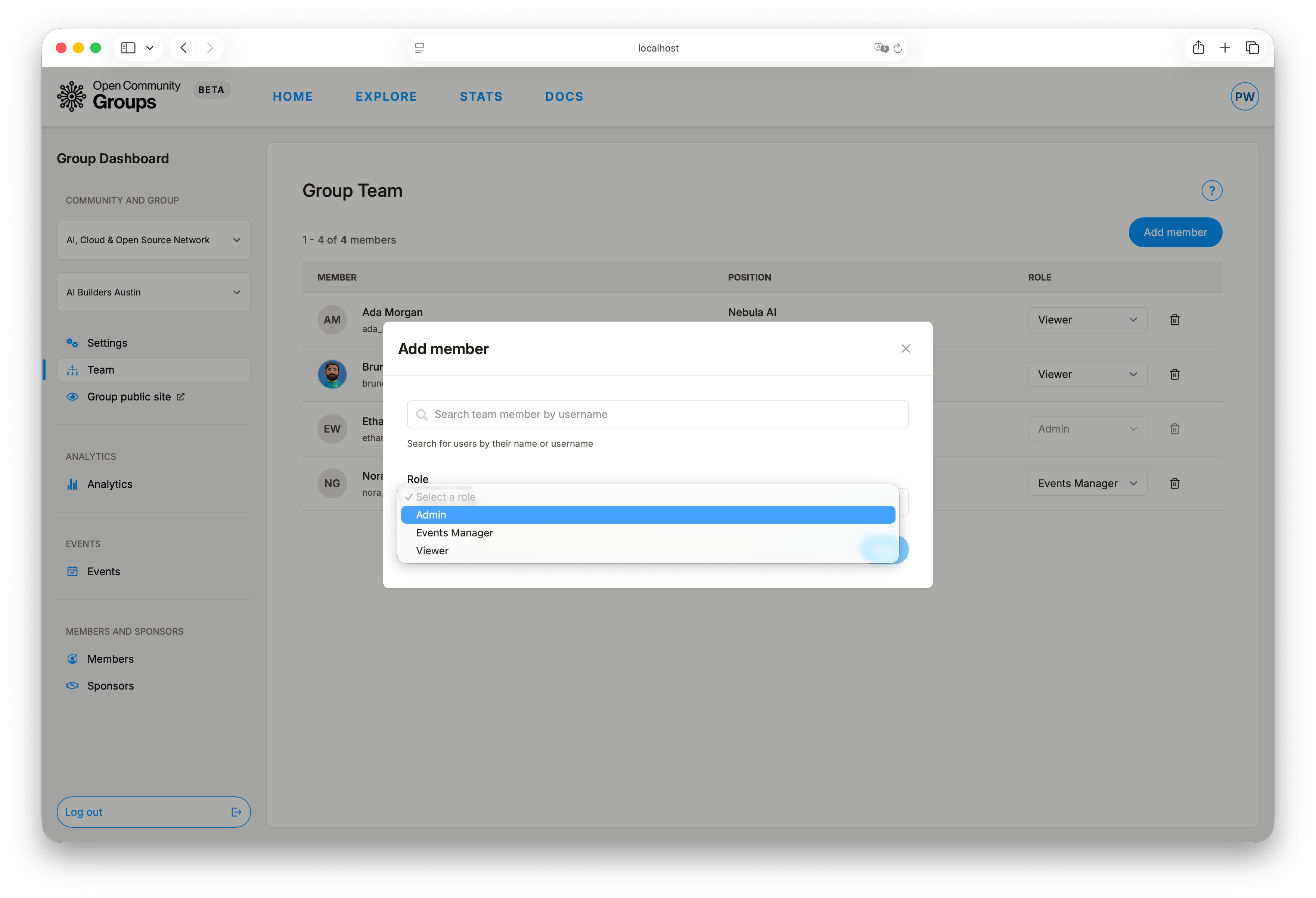
Alliance role interaction:
- Alliance
adminandgroups-manageralso have group write permissions inside that alliance. - Alliances can restrict group team management so only alliance
adminandgroups-managerroles can add, update, or remove group team members. - Alliance
viewerremains read-only at group scope.
UI behavior:
- Controls are disabled when your role does not allow that action.
- Server-side authorization still applies.
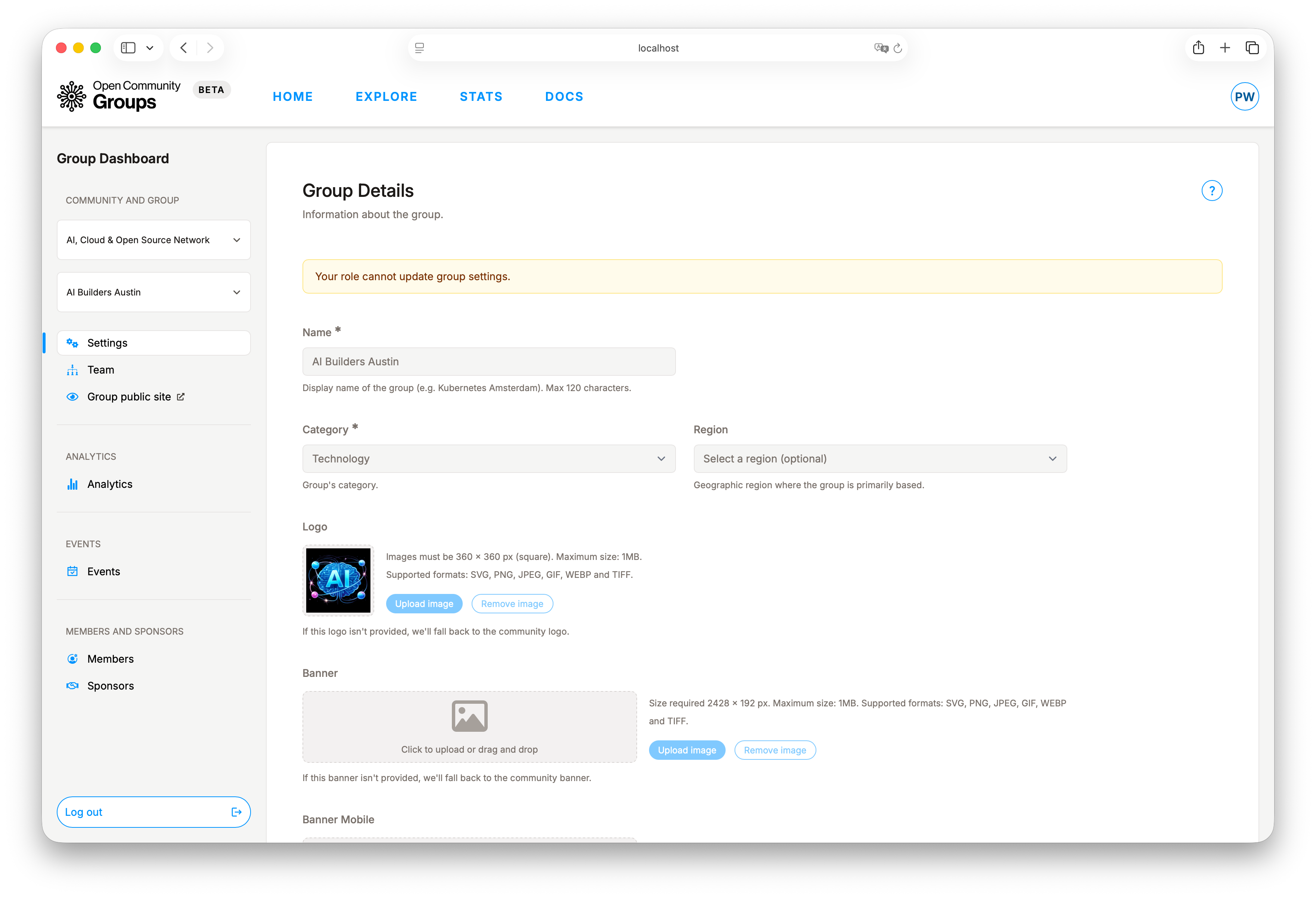
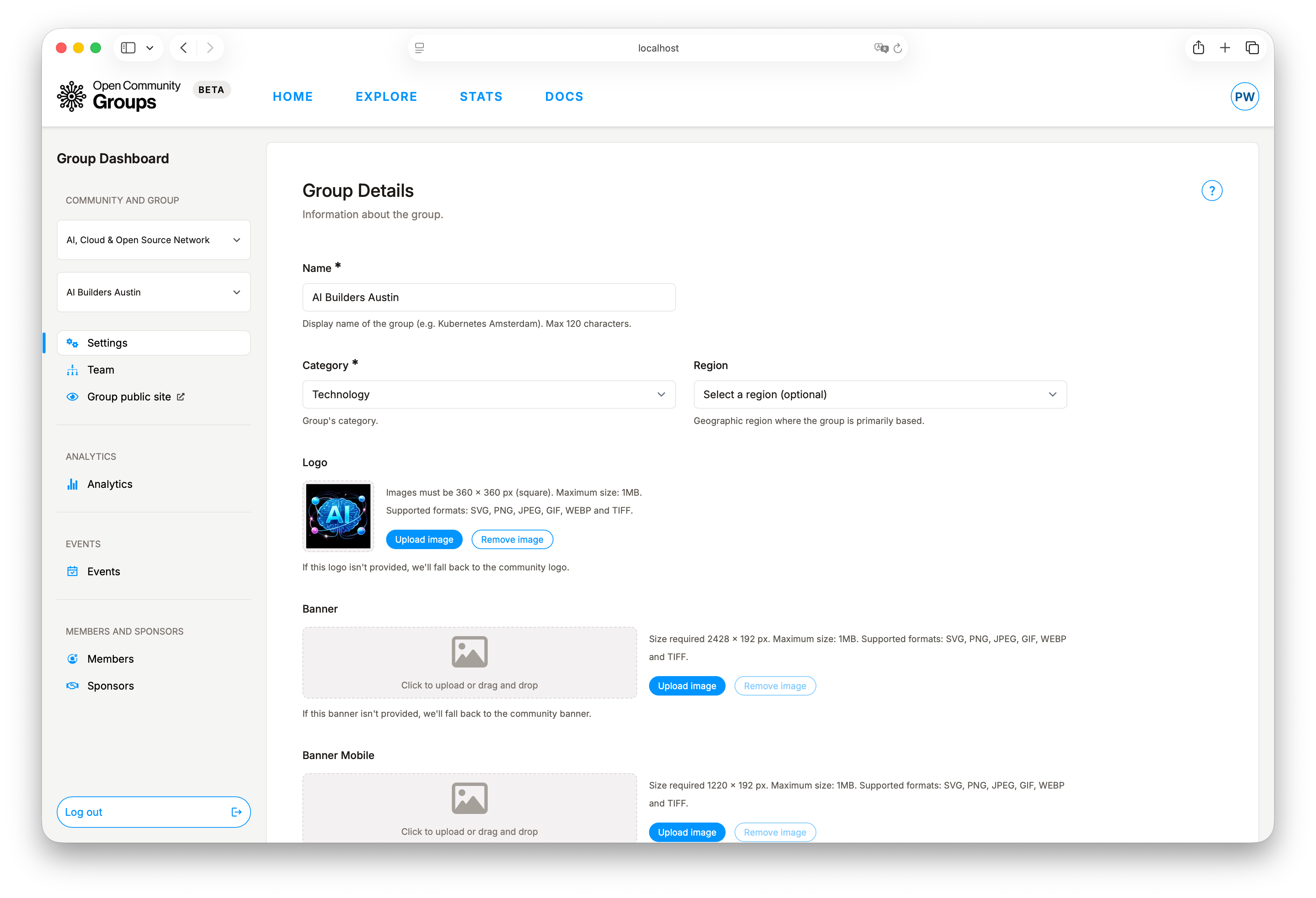
Settings: Group Identity
Use Settings to maintain the information people rely on before joining or attending.
You can manage:
- Name, category, and descriptions.
- Branding assets.
- Location search and map coordinates.
- Optional pretty URL slug for public group links.
- Social links.
- Optional tags, photo gallery, and extra links.
Category and region options in this form come from the defined alliance's Group Categories and Regions tabs.
Brand inheritance model in this scope:
- If a group logo is not set, OCG falls back to the alliance logo.
- If a group banner or mobile banner is not set, OCG falls back to the alliance banner.
- If a group Open Graph image is not set, group and event link previews fall back to the alliance Open Graph image.
Pretty URL slugs are optional. When set, OCG uses the pretty slug in generated group and event links, while the generated group slug continues to work.
Pretty URL slug rules:
- Use lowercase ASCII letters, numbers, and hyphens only.
- Start and end with a letter or number.
- Do not use consecutive hyphens.
- Use 50 characters or fewer.
- Use a value that is unique within the alliance and different from the generated slug.
Field requirements and limits are shown inline in the settings form while editing.
Payments: Group Recipient Setup
Ticketed events are available only when two prerequisites are both true:
- Your OCG deployment has payments enabled.
- The group has a payment recipient configured in
Settings.
Group-level setup:
- Open Settings.
- Enter the group's Stripe connected account ID in the payments section.
- Save the group settings.
OCG expects a Stripe connected account identifier in the acct_... format.
The dashboard does not create or onboard the Stripe account for you.
For the full Stripe-side setup, including connected-account onboarding and payout details, follow Payments Setup.
If the group leaves the payment recipient blank, organizers can still run free RSVP events, but ticketed events stay unavailable for that group, including zero-price tiers.
If you do not see payment controls in the event editor at all, your deployment may not have payments enabled yet. That setup is managed outside the public dashboard documentation.
Organizer permissions:
- Configuring the group payment recipient requires
group.settings.write. - Creating paid events and approving/rejecting refund requests require
group.events.write. - Organizers with read access can still view attendee refund status in
Event -> Attendees.
Team: Organizer Capacity
Team supports invitation-driven organizer management with role updates for existing members.
Current assignable roles:
adminevents-managerviewer
Important protection:
- The last accepted group admin cannot be removed or demoted.
This protects continuity for critical event operations and approvals.
!> The last accepted group admin cannot be removed or demoted. Add another accepted team member first, then retry.
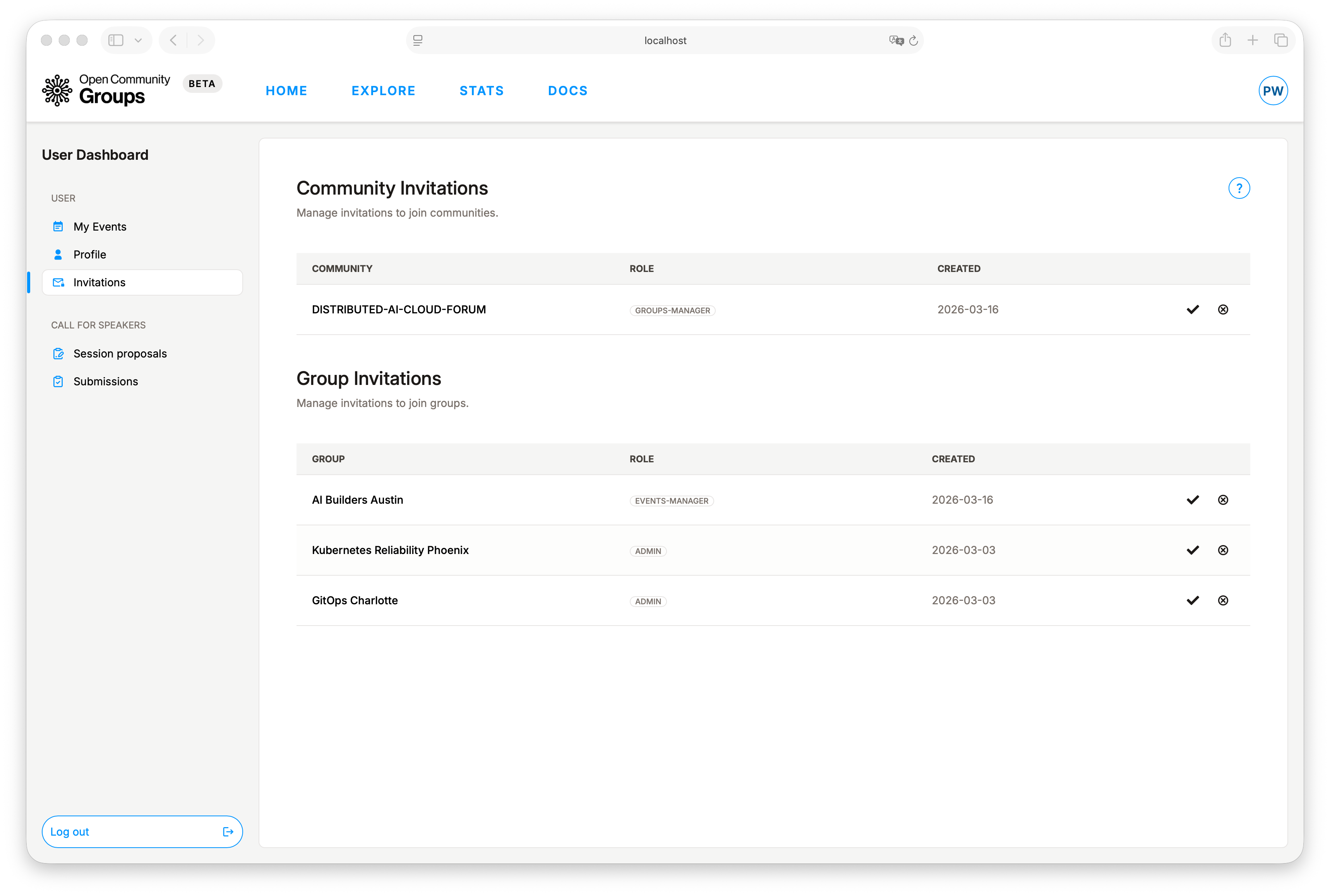
When you add a group team member, OCG sends an invitation with a link to User Dashboard -> Invitations.
Invitation acceptance and dashboard visibility details are covered in User Dashboard Guide.
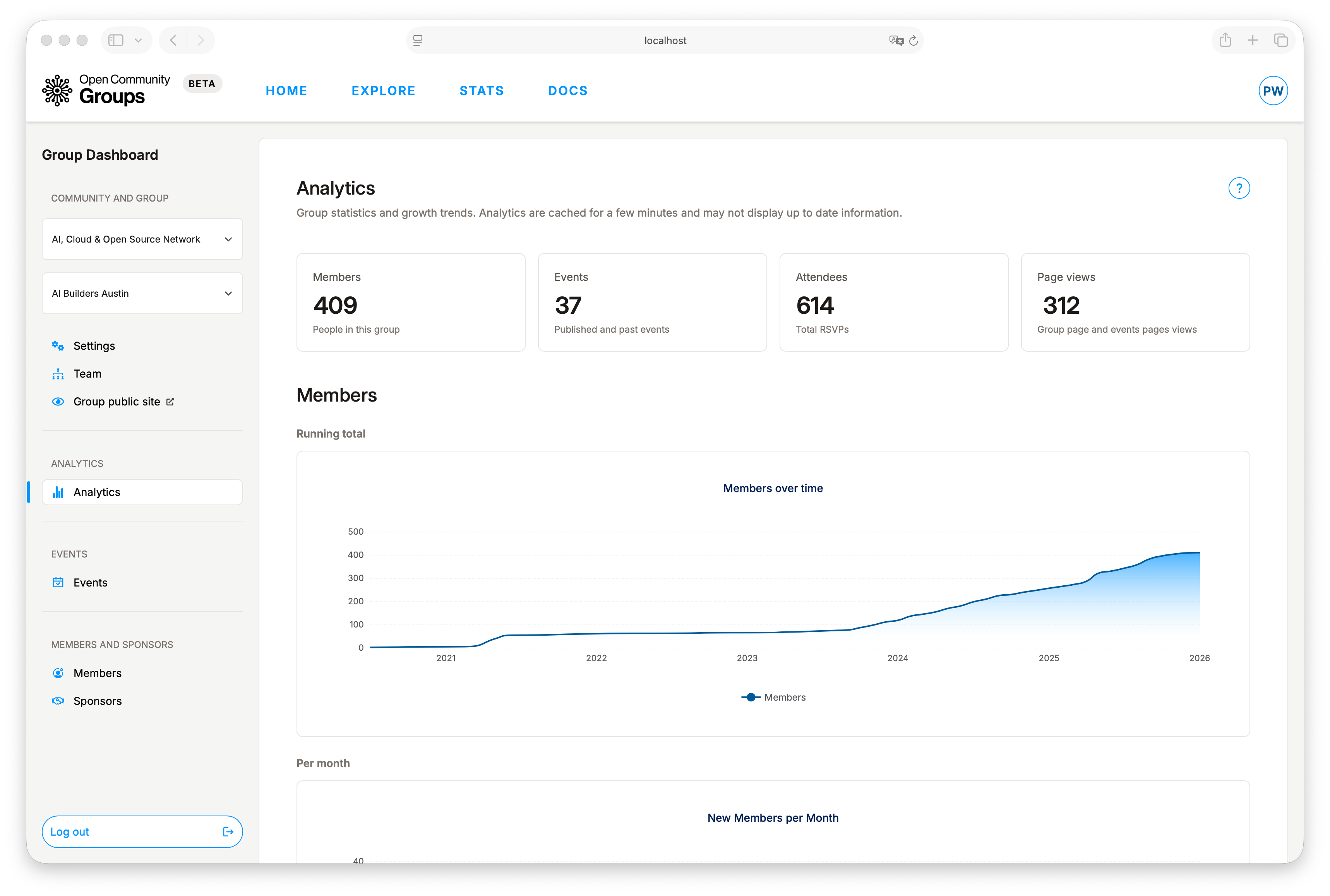
Analytics: Delivery Health
Group analytics focuses on operational output:
- Members.
- Events.
- Attendees.
- Page views for the group page and all event pages.
Each metric includes running totals and monthly trends, so it is easier to tell whether growth is steady over time or mainly tied to isolated spikes.
The Page views section starts with total group and event page views, then breaks views down by
page type with daily charts for the last month.
Analytics values can lag briefly due to caching.
Members: Communication
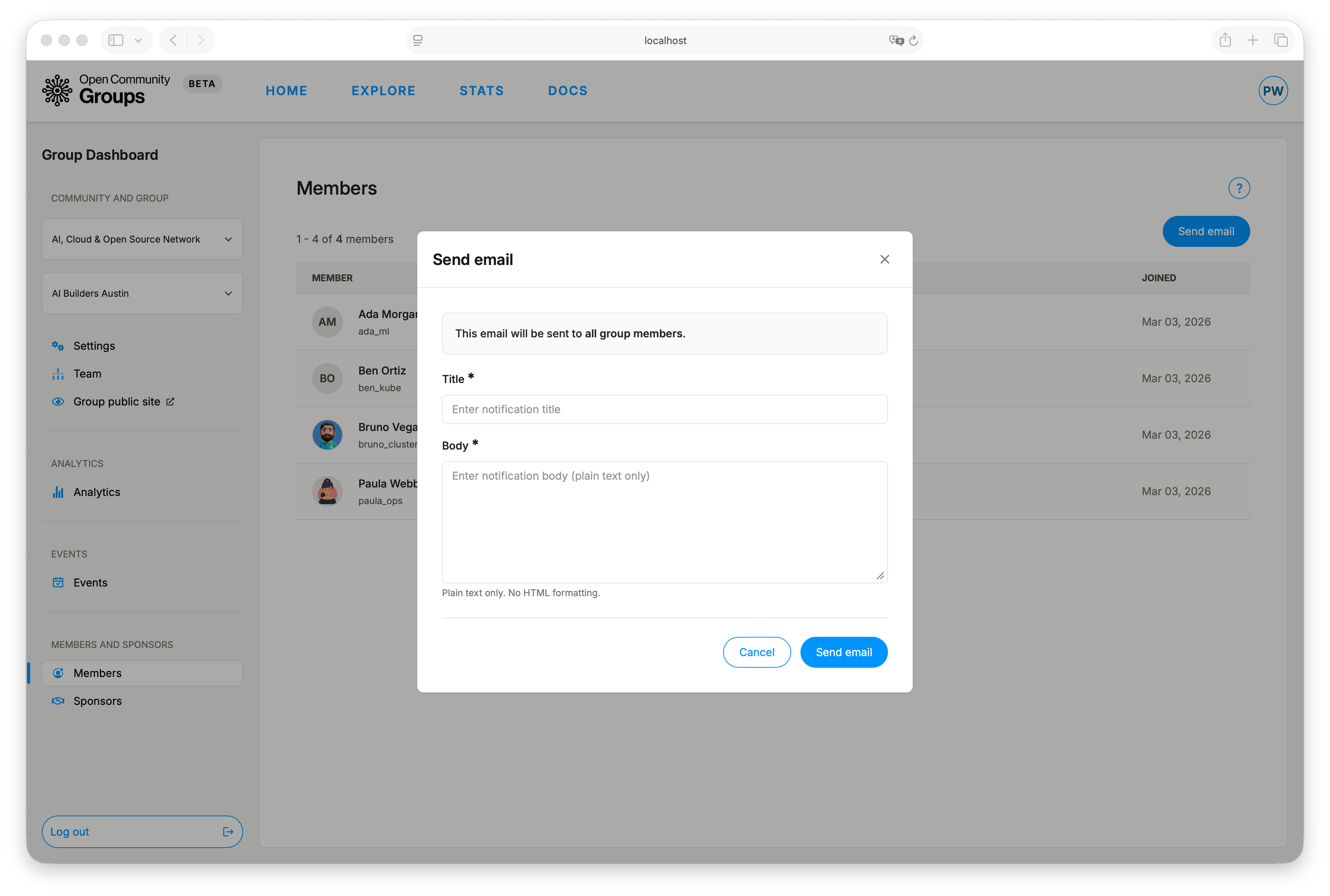
Members provides two practical capabilities:
- Browse member list and join dates.
- Send plain-text email to all group members.
Send email reaches both group members and group team members who receive optional
notifications. The email form includes a required Subject, defaults it to the group name, and
sends the message body as plain text.
Sponsors: Reusable Profiles
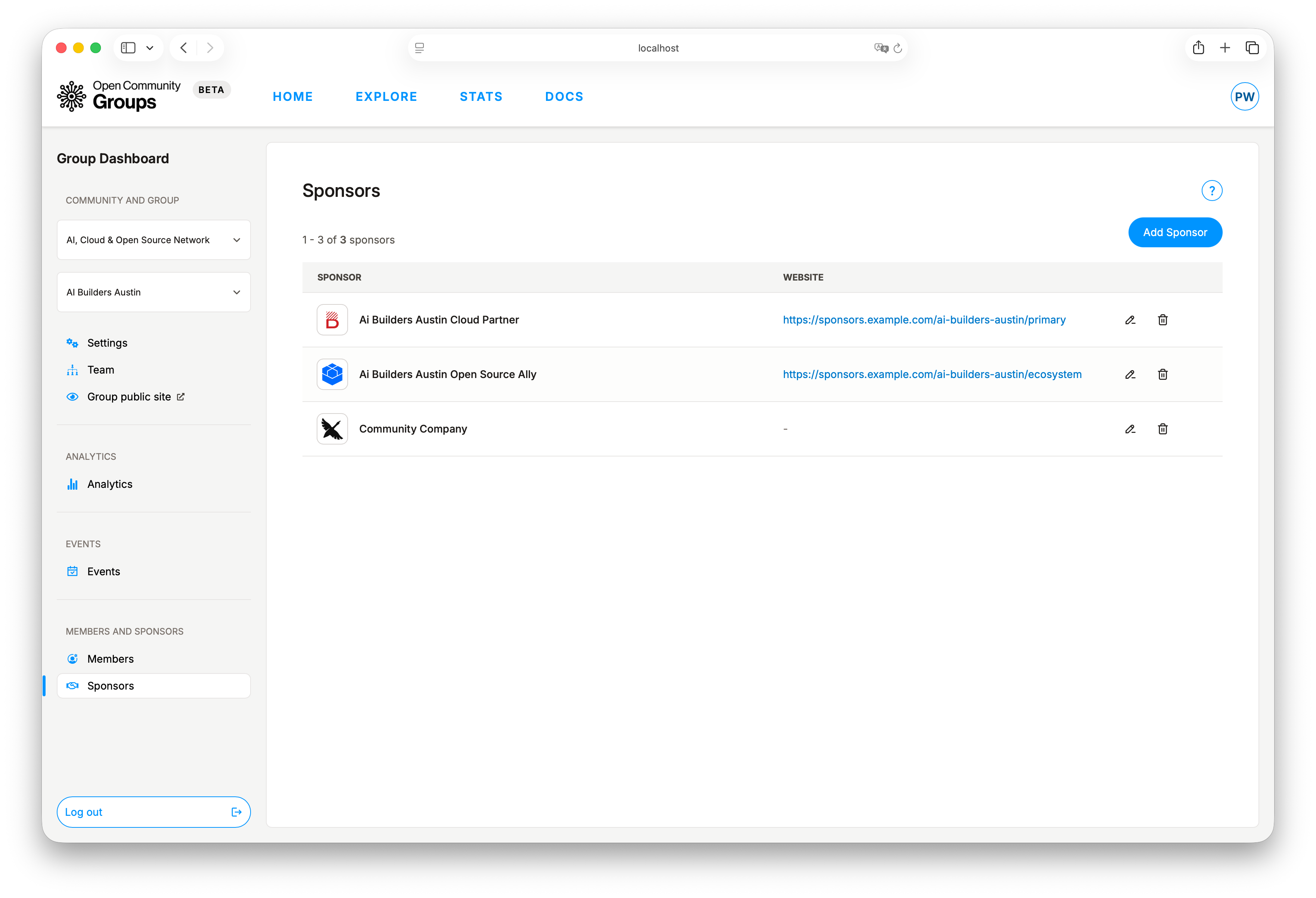
Sponsors are managed once and reused across events, reducing repetitive event setup. They can also be individually featured on the public group page.
Typical flow:
- Create sponsor records in Sponsors.
- Mark the sponsors you want highlighted on the public group page.
- Attach sponsors in event editing (
Hosts & Speakerssection). - Update sponsor details once to keep future events consistent.
Events: Operations Hub
Most organizer time is spent in Events: creating drafts, publishing, managing CFS, reviewing submissions, and running attendance/check-in flows.
List classification is based on event start time:
Upcoming eventsincludes items whose start time has not yet passed.Past eventsincludes items whose start time has already passed.
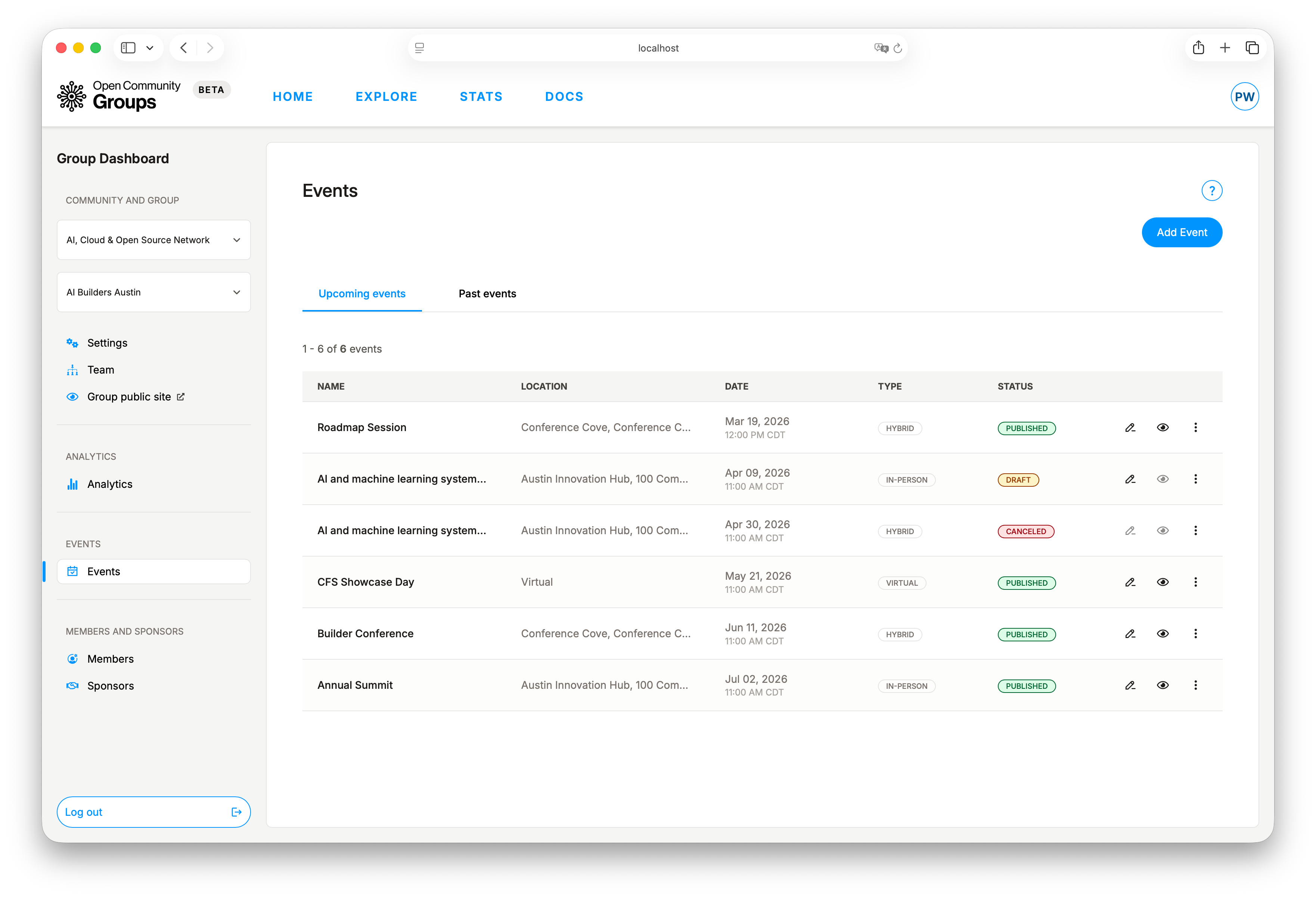
Starting from Add Event gives organizers a structured editor with tabbed sections that map directly to delivery needs (details, schedule, roles, sessions, CFS, attendees).
Waitlist-aware event operations also include:
- A
Waitlist enabledtoggle in event details. - Waitlist requires a numeric event capacity; unlimited-capacity events cannot enable it.
- Optional
Registration OpensandRegistration Closesfields inDate & Venue. When configured, the window controls public registration, invitation requests, starting ticket checkout, registration-question answers, and automatic waitlist promotion. Registration open and close dates cannot be after the event start, and close must be after open when both are set. If only an open date is set, registration closes at event start; if both fields are blank, no registration window is applied. Active checkout holds may still complete payment and required registration questions after the public window closes, until the hold expires. - Separate
Attendees,Requests, andWaitlisttabs inside the event editor, depending on event enrollment settings, with table search, sorting, and filters for day-of operations. - Automatic promotion from the waitlist when attendees leave, capacity increases, or capacity is removed, but only while registration is open.
- Waitlist recipients included in event cancellation notifications.
Invitation-review event operations include:
- A
Require Invitation Approvaltoggle in event details. - Invitation review cannot be combined with waitlist or paid tickets.
- Invitation requests appear in a separate
Requeststab for organizer review. The tab defaults to pending requests and can be filtered to all, accepted, or rejected requests. - Accepting a request creates a confirmed attendee if capacity allows.
- Rejecting a request records the decision without creating an attendee.
Organizer-created event invitations are managed from the event Attendees tab:
- Organizers with
group.events.writecan invite a registered platform user or enter an email address for someone who has not registered yet. - Email invitations are for LF SSO accounts. The invited email must match the invitee's LF account primary email, or the invitee will not be able to accept.
- Manual invitations are available for free RSVP events only, not ticketed events.
- Manual invitations are an organizer override for registration windows and capacity. Invitees can accept and answer required registration questions outside the public registration window.
- Pending invitations appear in the attendee table with invitation status and can be canceled before the invitee accepts.
- If an invitee rejects the invitation, the attendee row stays rejected and the same user cannot be invited to that event again.
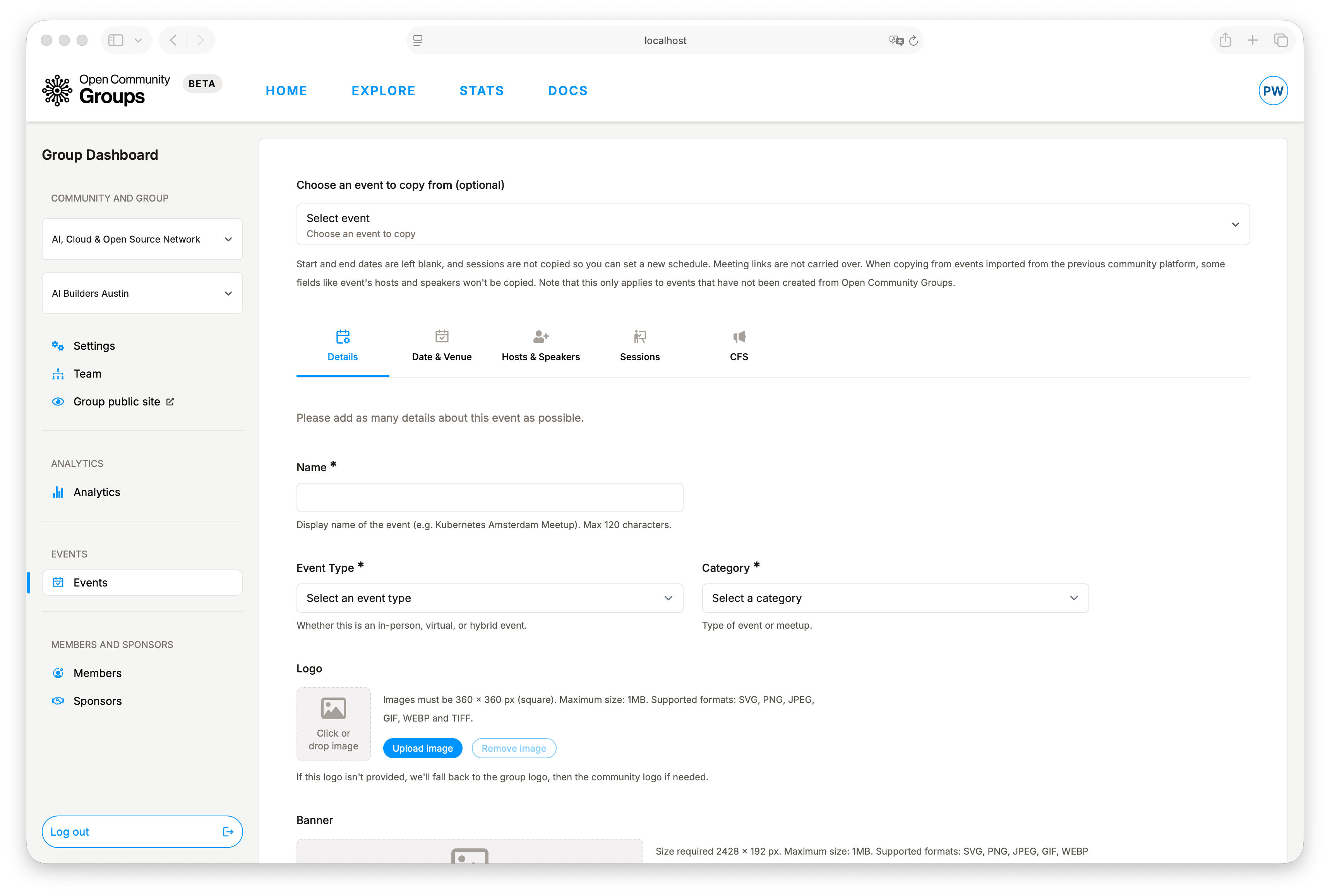
For complete mechanics, continue to:
To understand how attendees experience the published result, see Public Site Guide.
Audit: Logs
AUDIT -> Logs is the last section in the left dashboard menu. It provides a read-only record of
group dashboard activity for the selected group.
Coverage in this view includes:
- Group settings updates.
- Group team changes.
- Sponsor changes.
- Event lifecycle actions such as add, update, publish, unpublish, cancel, and delete.
- Check-ins, CFS submission reviews, and custom notification sends.
Table behavior:
- Rows are ordered by newest first by default.
- You can filter by
Action,Actor, and date range. - You can switch ordering between newest first and oldest first.
- Pagination keeps the active filters applied.
Detailsopens a popover when an audit row has extra metadata such as a role or notification subject.
Target display behavior:
- OCG shows the resource type plus the current resource name.
- If the current resource row no longer exists, the audit row still remains and falls back to the stored resource identifier.
Scope note:
- This screen is group-dashboard focused.
- Some overlapping actions, such as
group_updated, can also appear in the alliance dashboard audit view when they match that dashboard's accepted scope.