Public Site Guide
The public site is where people discover alliances, join groups, RSVP to events, check in, and, when enabled, submit talks to Call for Speakers.
If you are not sure where to start, this is the best place to begin.
If you prefer a faster task-oriented run-through first, use Quickstart.
Sections:
- Understand the Core Pages
- Discover Quickly in Explore
- Join Groups
- RSVP and Attend Events
- Check In on Event Day
- Submit to Call for Speakers (CFS)
- Use Stats for Platform Context
- Recommended Member Flow
Understand the Core Pages
| Page | Path | Why it matters |
|---|---|---|
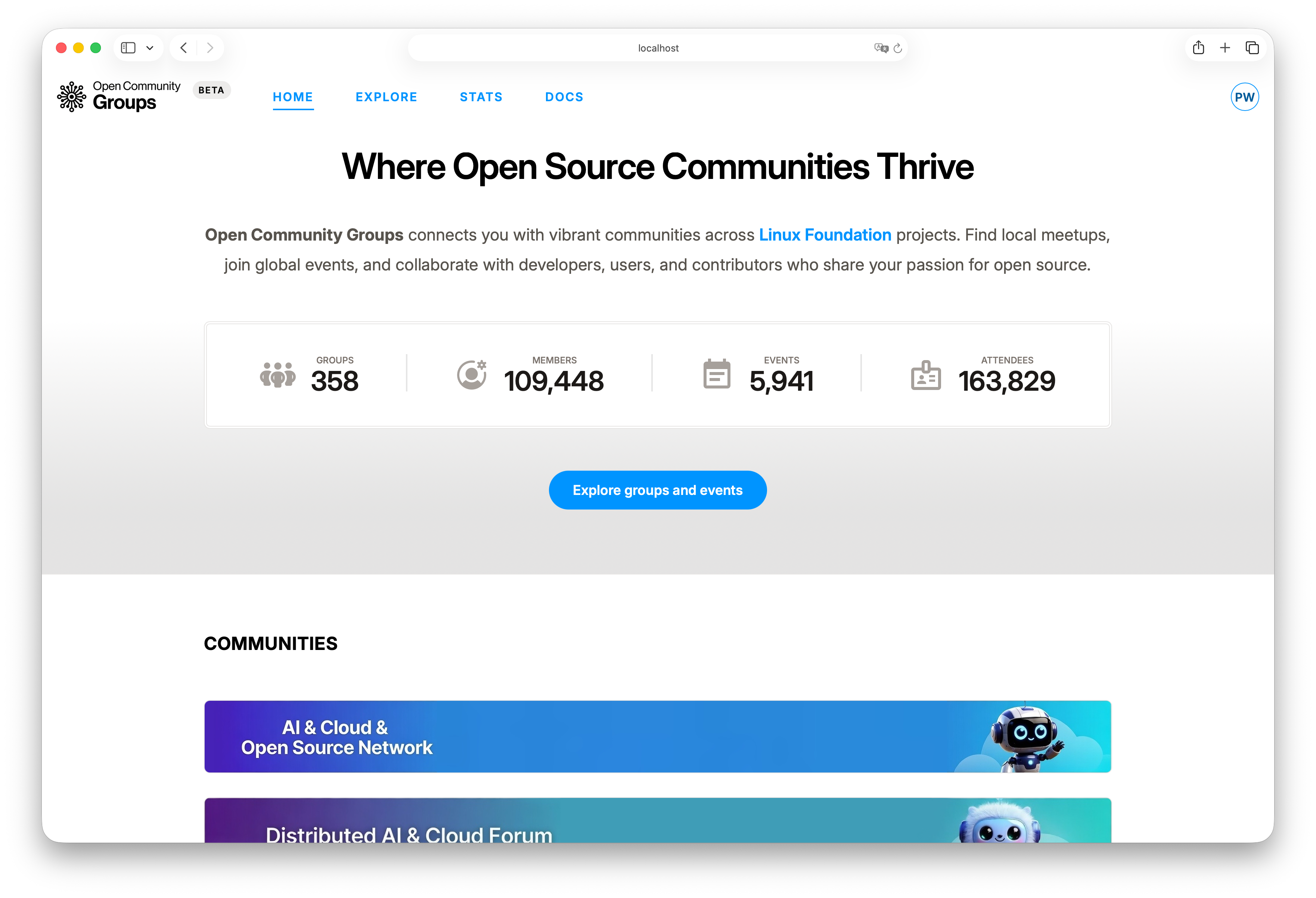
| Home | / | Platform overview, featured alliances, curated upcoming events |
| Explore | /explore | Search and filter events or groups with multiple views |
| Stats | /stats | Platform-level growth and trend visibility |
| Alliance page | /{alliance} |
Alliance identity, activity, and top-level context |
| Group page | /{alliance}/group/{group_slug} |
Membership entry point and group-specific event stream |
| Event page | /{alliance}/group/{group_slug}/event/{event_slug} |
RSVP, schedule, CFS, and delivery details |
| Check-in page | /{alliance}/check-in/{event_id} |
Event-day attendance confirmation |
Discover Quickly in Explore
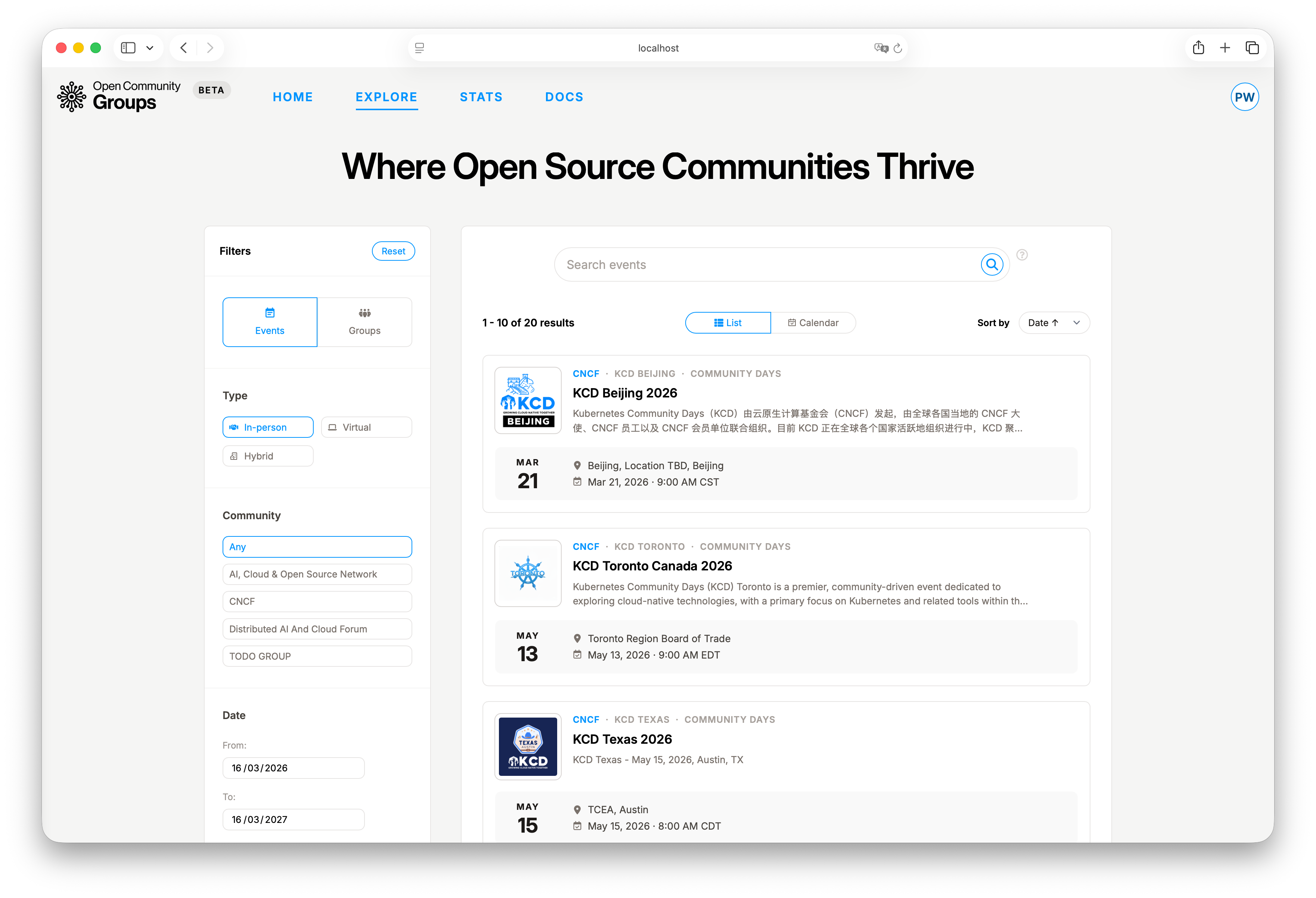
Explore is designed to help you move from "too many options" to a confident choice.
For events, begin broad and narrow in this order: alliance, type, category, and date range. Keeping this order avoids over-filtering too early.
?> Start with alliance, then add type, category, and date range only if you need to narrow results further.
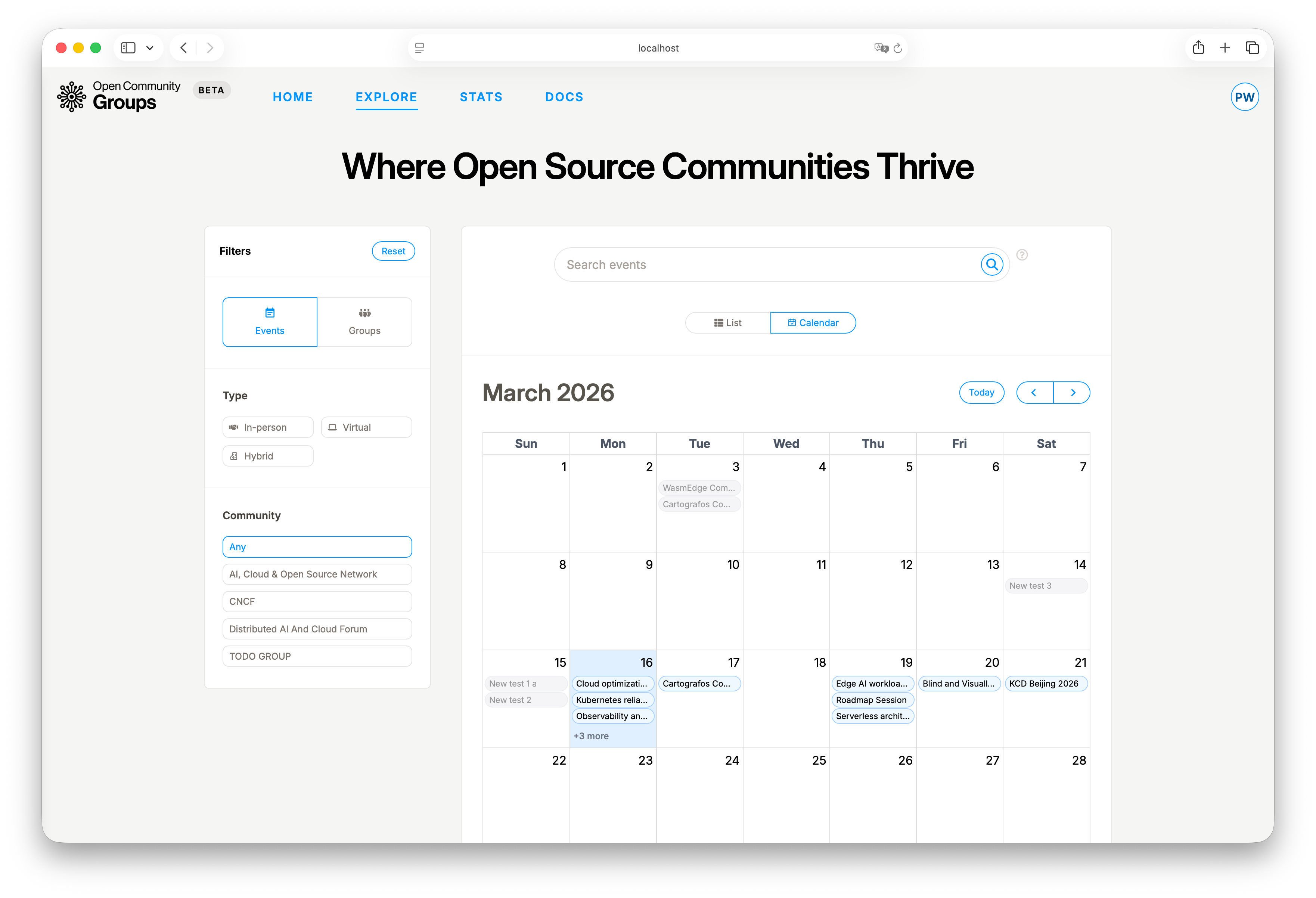
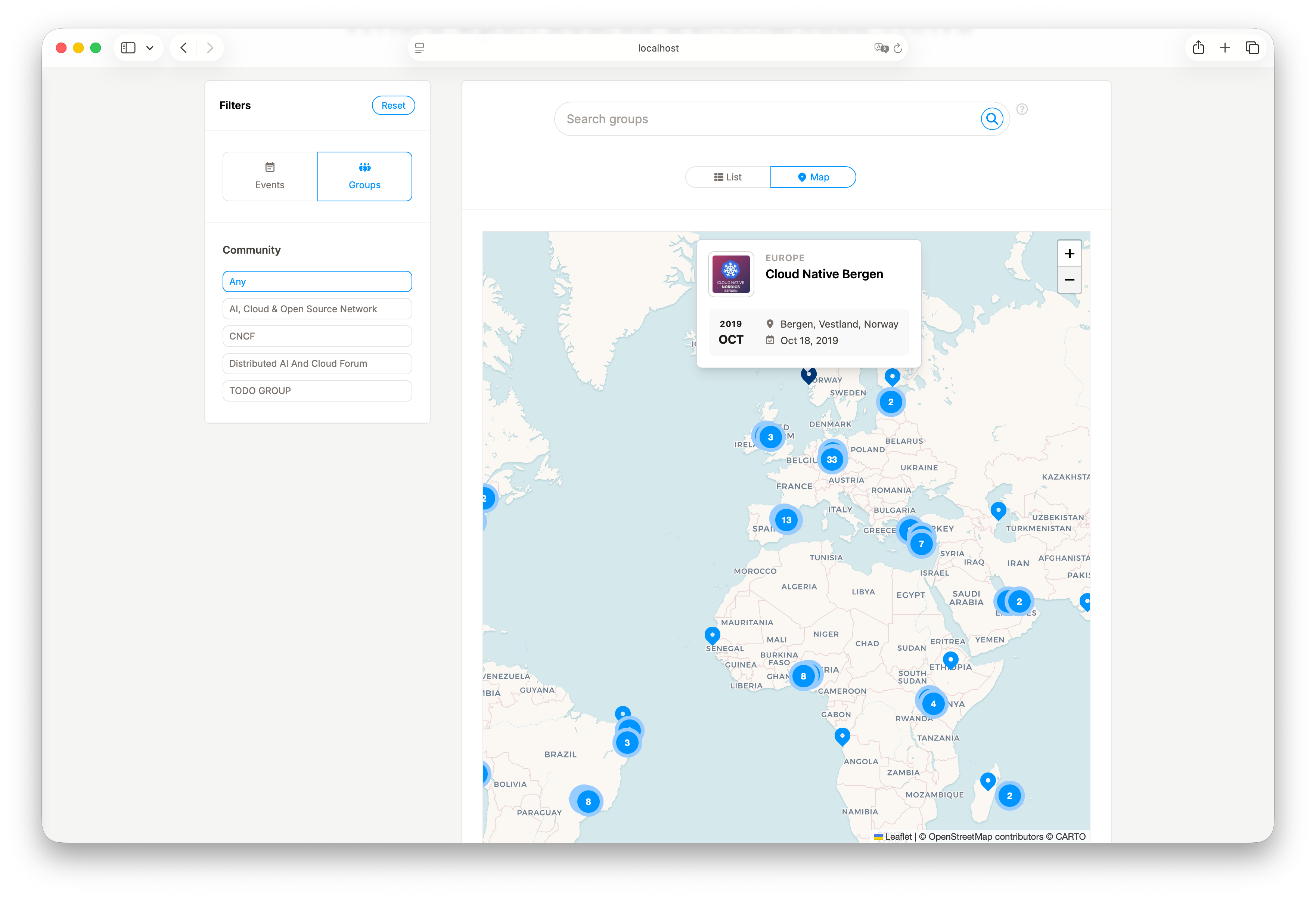
Explore gives you multiple view styles, and the available options depend on what you are browsing:
Events:ListandCalendar.Groups:ListandMap.
Quick guide:
Listhelps when you want to scan titles, dates, and descriptions quickly.Calendarhelps when you are planning around time conflicts and busy periods.Maphelps when place matters, like finding nearby groups.
Join Groups
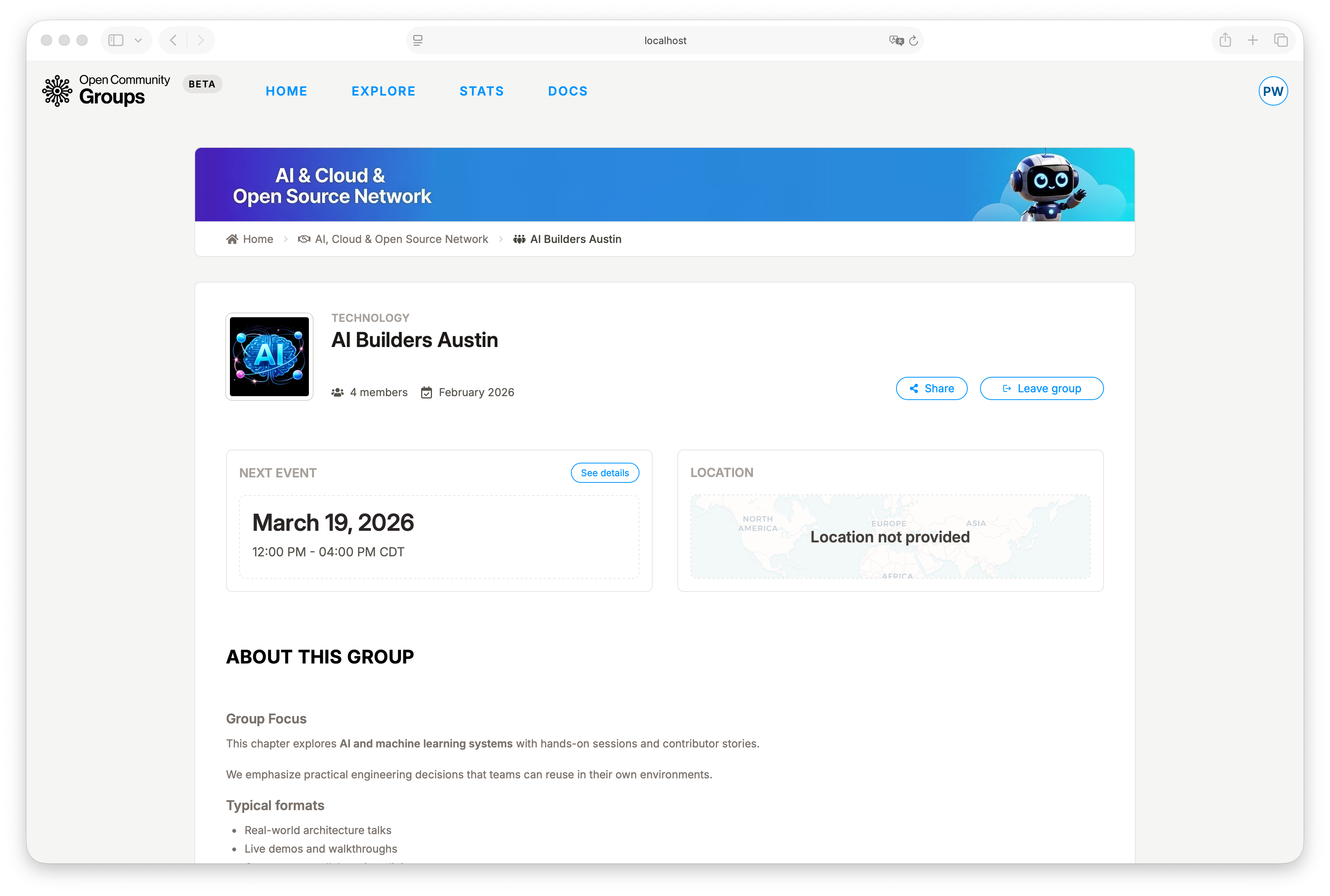
Joining a group is how you stay connected to a alliance over time. Events come and go, but groups are where ongoing participation happens.
On the group page, Join group adds you as a member. If you later step back,
Leave group removes you from the group.
Helpful details:
- Logged-out users are prompted to sign in with LinkedIn.
- The join button may take a moment to update after the page loads.
- After you join, OCG sends a welcome message with a link back to the group page.
RSVP and Attend Events
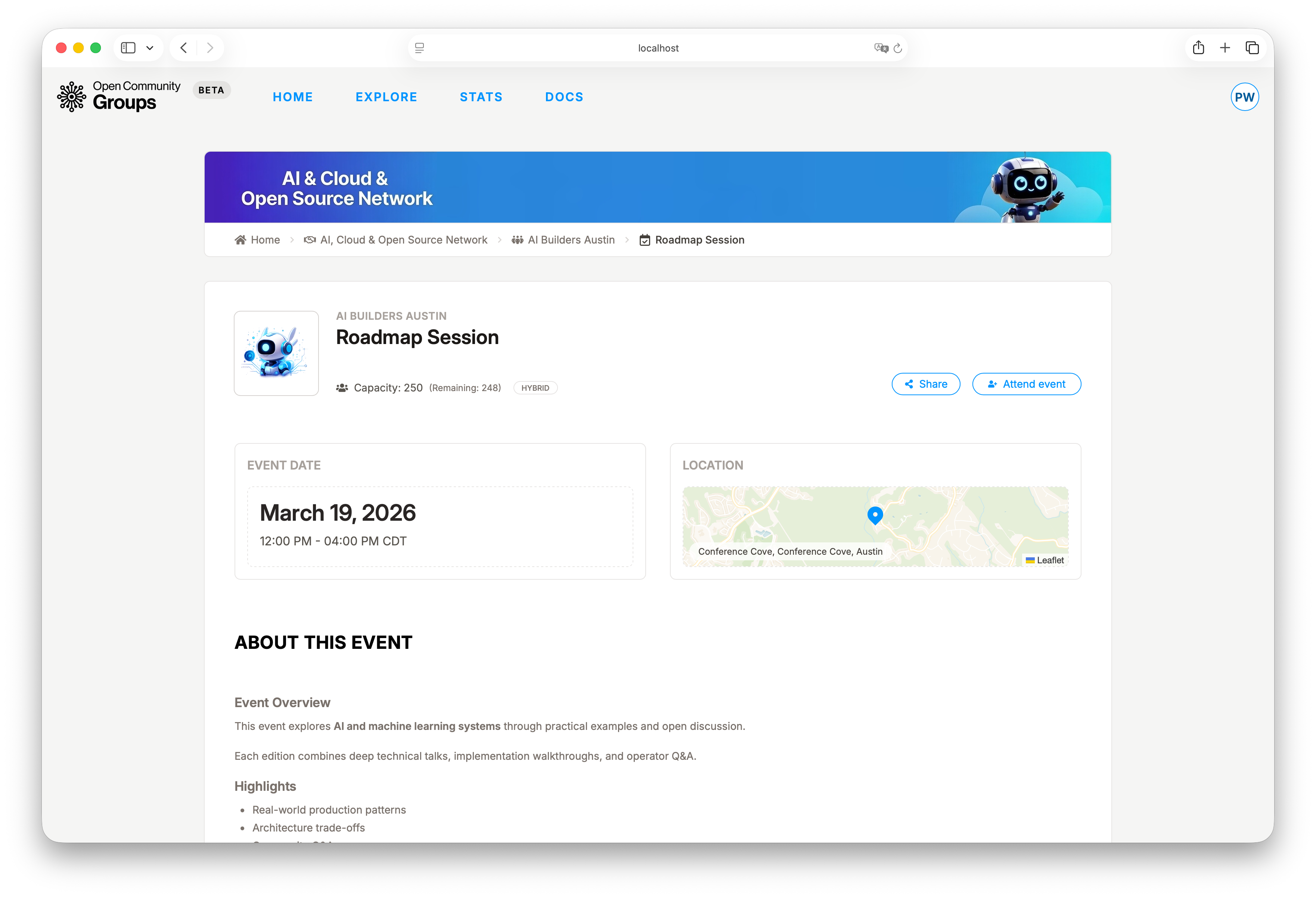
The event page is the best place to check event details. Use it for RSVP, logistics, links, and speaker-program status.
Click Attend event to RSVP. If the event is virtual/hybrid and meeting access
is configured, attendees can see Join meeting when the event is live.
Helpful details:
- The RSVP button may take a moment to update after the page loads.
- RSVP actions are available only before the event start time.
- If organizers configured a registration window, the event page shows when registration opens or closes. RSVP, starting ticket checkout, invitation requests, waitlist joining, and registration-question answers are disabled outside that window. If you already have an active ticket hold, you can complete payment and required registration questions until the hold expires.
- Canceling RSVP is immediate through
Cancel attendance. - After RSVP, OCG sends a confirmation message with a calendar file attached.
- If organizers configured registration questions, clicking
Attend eventorBuy ticketopens a question form first. Required answers must be completed before registration can continue. - Some events use invitation review. In that case,
Attend eventbecomesRequest invitation, and meeting access/check-in are available only after an organizer accepts the request.
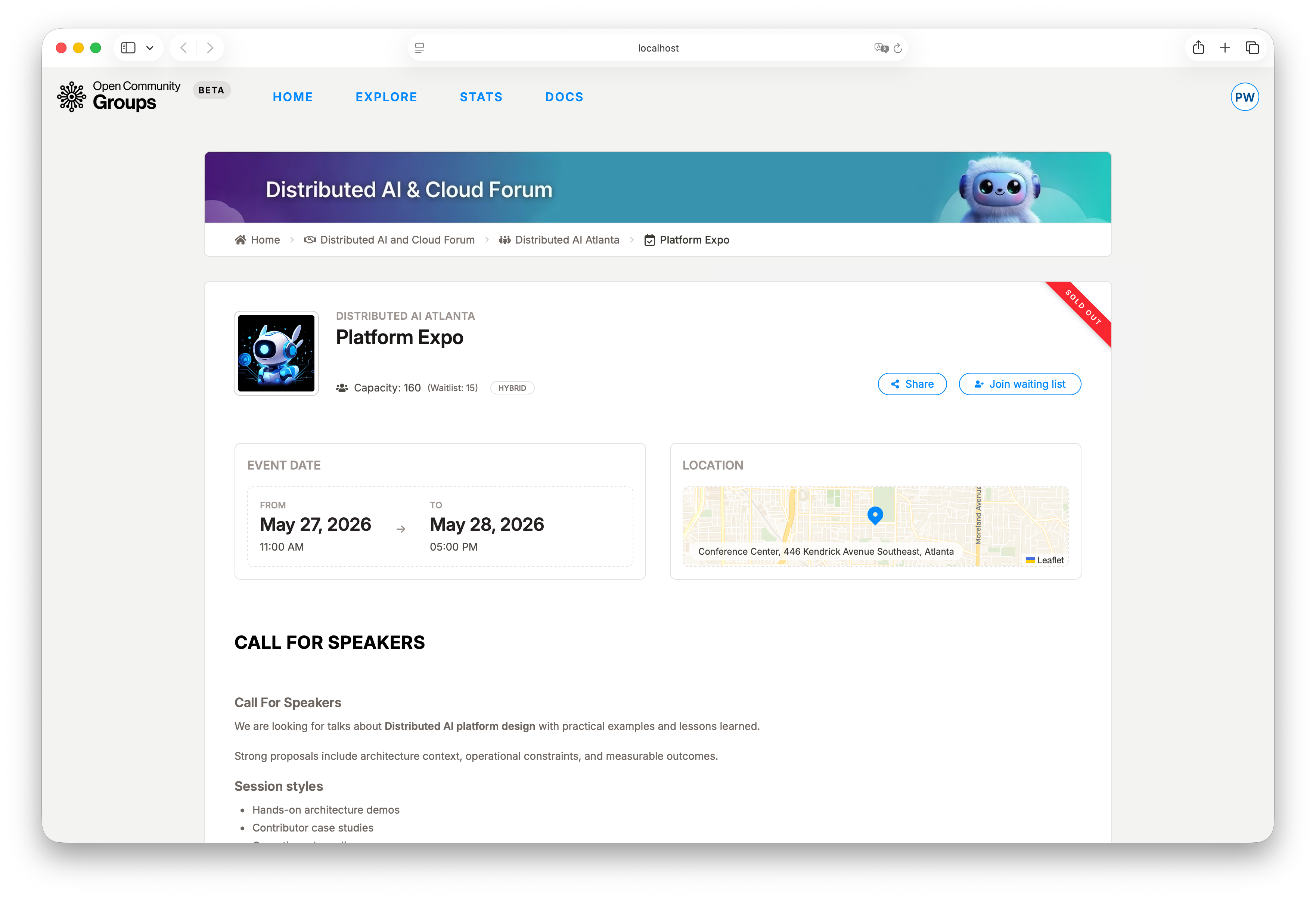
When an event has a capacity limit, the button behavior depends on organizer settings:
- If the event is full and waitlist is disabled, it is sold out.
- If the event is full and waitlist is enabled,
Attend eventbecomesJoin waiting list. - When the waitlist is enabled and already has people queued, the event page can show a public
(Waitlist: N)count next to capacity. - Logged-out visitors are asked to sign in before they can RSVP or join the waitlist.
- If you later leave the waitlist, that change is immediate.
- If a seat opens because someone leaves, capacity increases, or organizers remove the capacity limit, OCG can promote you automatically while registration is open and send a promotion notification.
- If organizers remove the capacity limit entirely, everyone still on the waitlist is promoted while registration is open.
- If a waitlist promotion or organizer invitation requires registration questions, finish them from
My Eventsbefore your registration is complete. - Organizer invitations can still be completed outside the public registration window.
For invitation-review events:
- Pending requests do not reserve seats.
- Organizers accept requests while capacity remains available.
Invitation requestedmeans the request is waiting for review.Request rejectedmeans organizers declined the request; resubmitting is not available.- Accepted requests become regular attendance and send the usual event confirmation email with calendar attachment.
!> RSVP is only available before event start time. You must RSVP first to be eligible for event-day check-in.
Check In on Event Day
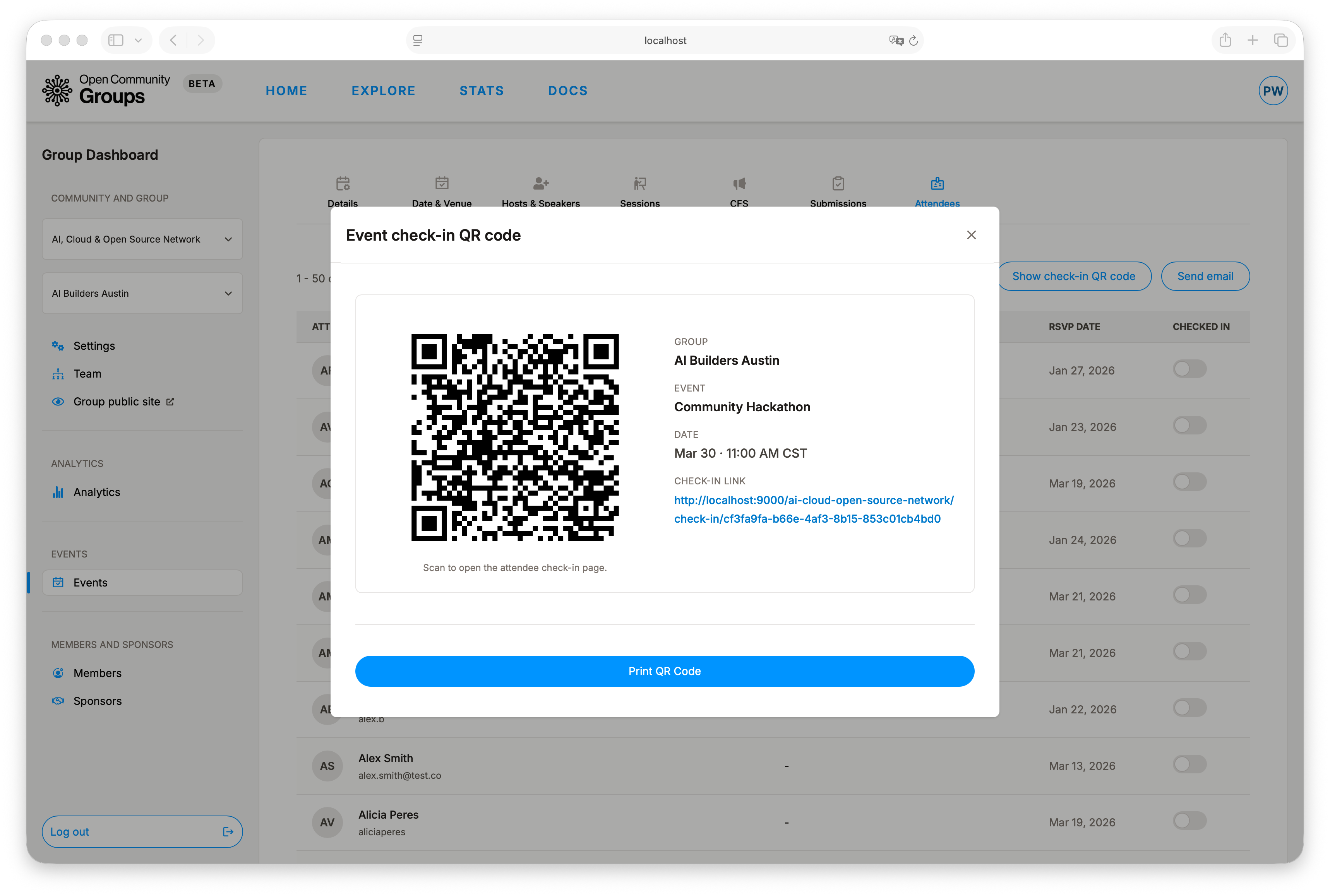
Check-in confirms that you attended the event, so time limits and attendance rules apply.
Window rules:
- Opens 2 hours before start time.
- Closes at the end of the event day.
- For multi-day events, closes at the end of the last day.
You cannot check in if:
- You are not an attendee.
- The event is not published or active.
- The check-in window is closed.
!> Check-in is only available when you are an attendee, the event is active, and the check-in window is open.
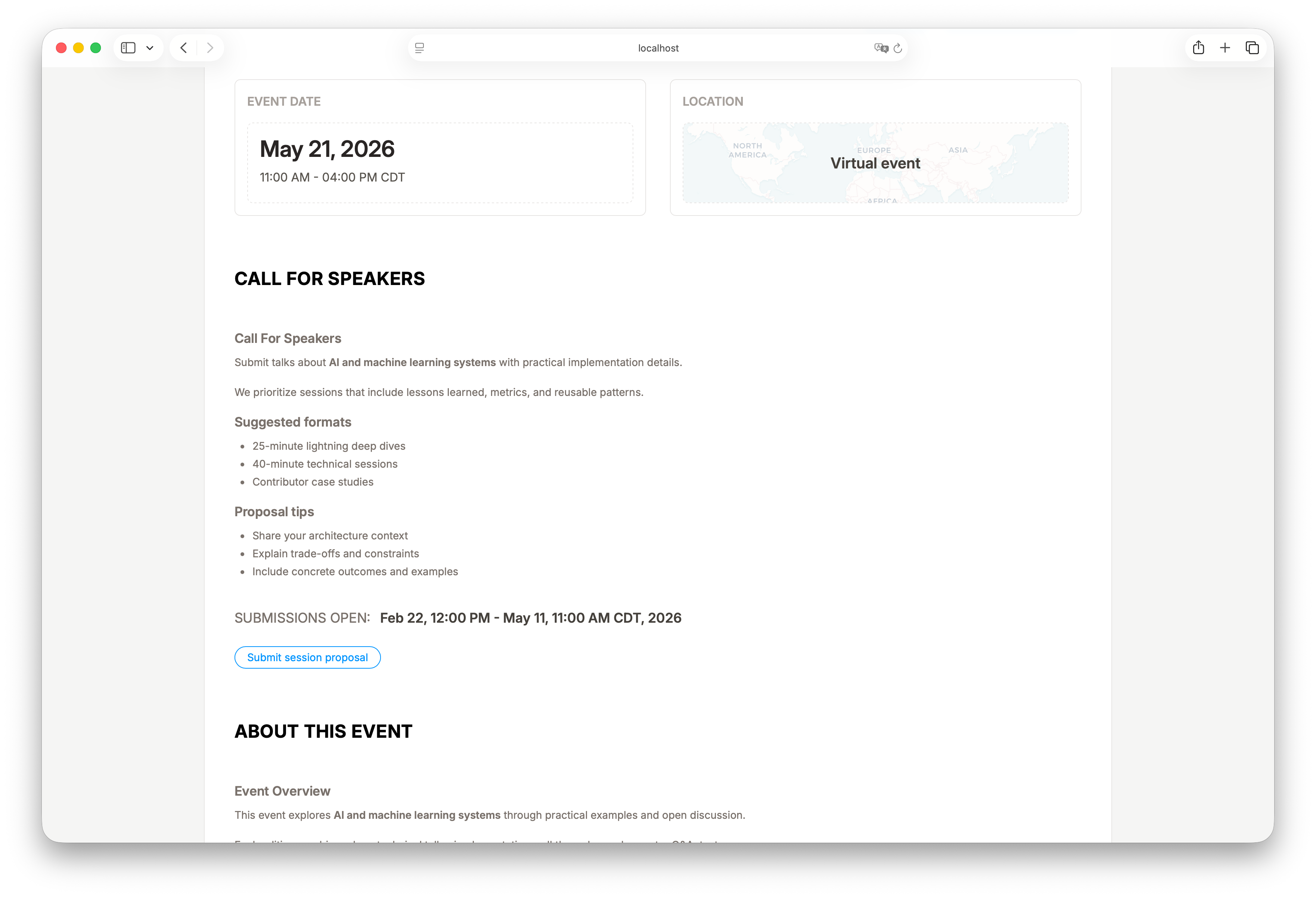
Submit to Call for Speakers (CFS)
The CFS flow happens in two places:
- Create reusable proposals in User Dashboard -> Session proposals.
- Submit those proposals from event pages where CFS is open.
This lets you reuse proposal content while keeping each event submission separate, including status, reviewer feedback, labels, and outcomes.
Track progress in User Dashboard -> Submissions.
For full speaker workflow detail, continue with User Dashboard Guide. For organizer-side review and event lifecycle controls, see Event Operations.
Use Stats for Platform Context
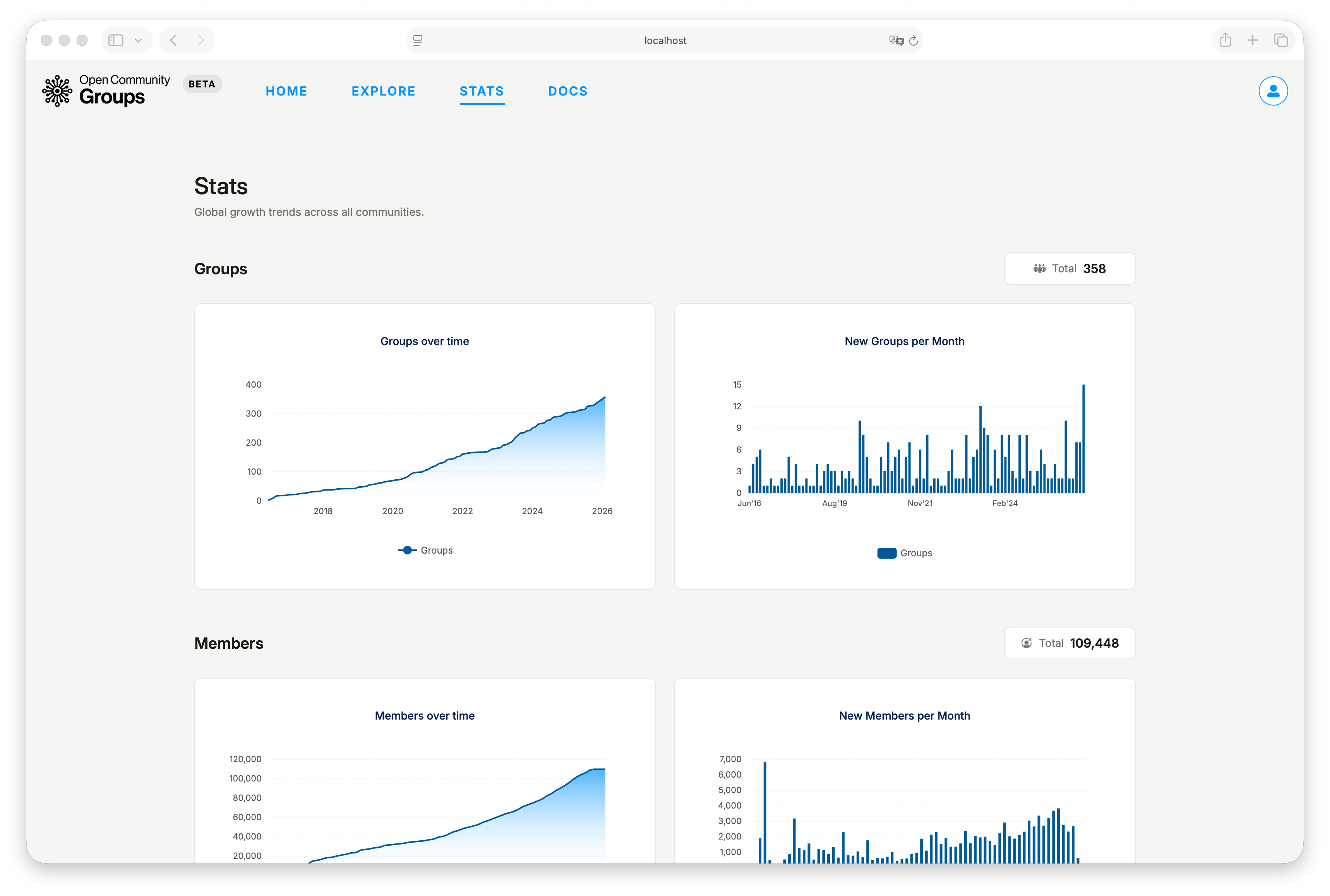
Stats helps organizers and contributors understand momentum at a glance: groups, members, events, and attendees over time.
Recommended Member Flow
- Discover in Explore.
- Join one or more groups.
- RSVP to events.
- Check in on event day.
- Use CFS features when you are ready to submit talks.
When you transition into organizer responsibilities, use Choose Your Dashboard.