User Dashboard Guide
Think of the User Dashboard as your home base inside OCG. It brings upcoming events, profile, invitations, proposal writing, and submission tracking into one place so moving from participant to speaker feels smooth.
For a fast end-to-end walkthrough first, use Quickstart.
Path: /dashboard/user
Sections:
- User Dashboard Structure
- My Events: Upcoming Participation
- Profile: Public Identity
- Invitations: Unlock Organizer Access
- Session Proposals: Reusable Talks
- Submissions: Track and Respond
- Audit: Logs
- Recommended Working Rhythm
User Dashboard Structure
The dashboard is organized into five areas:
Each area supports a different part of your participation in OCG: events, profile, access, audit visibility, proposals, and submissions.
My Events: Upcoming Participation
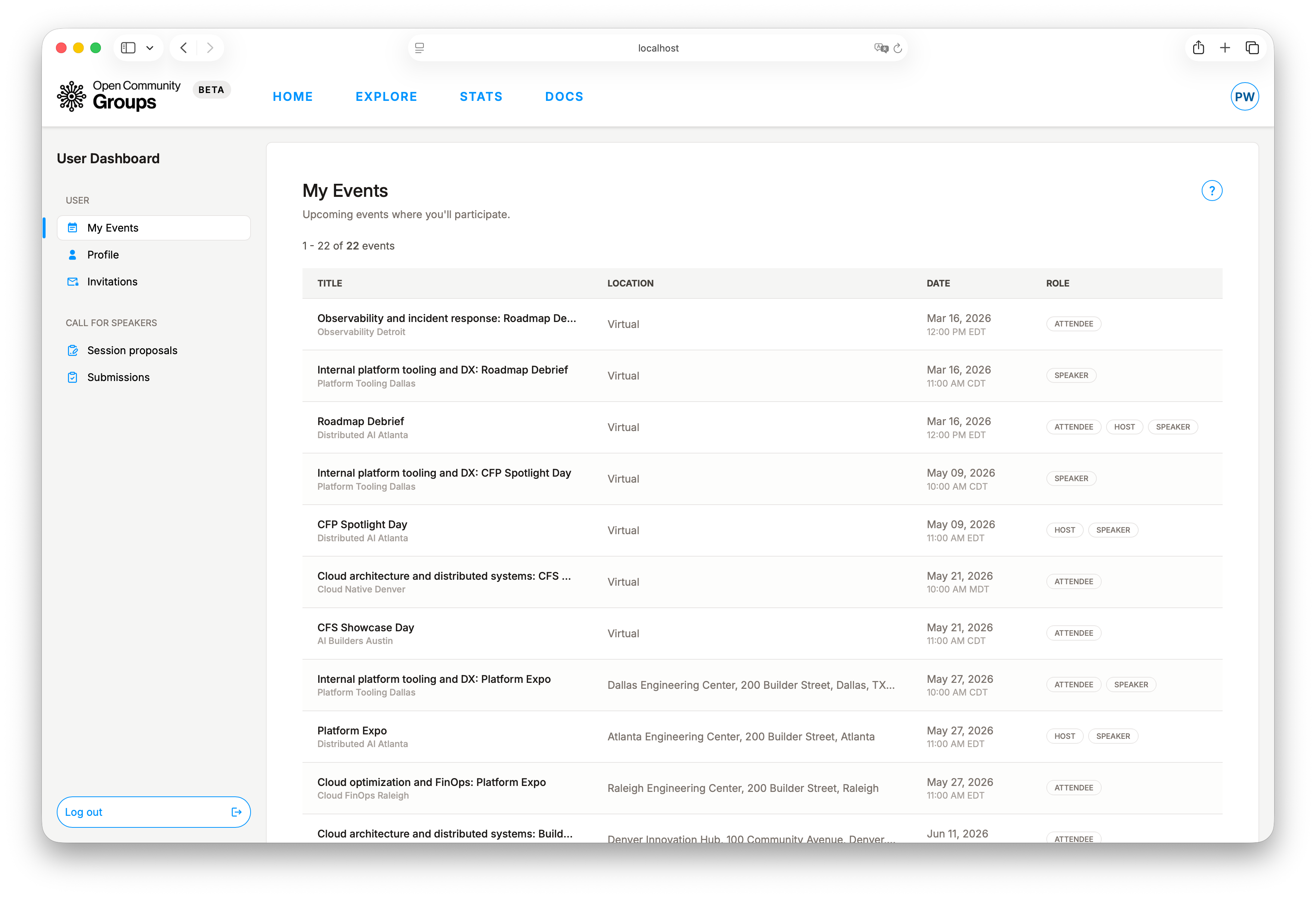
My Events is your personal queue of upcoming events where you already have an active role.
Each row includes:
- Event title with a direct link to the public event page.
- Event location.
- Event date and time.
- Your participation roles in that event (
Attendee,Host,Speaker, or multiple roles). - Your attendance status when action is still needed, such as
Payment pendingorRegistration pending.
When a row is marked Payment pending, use the row actions menu to complete checkout while the
ticket hold is still active, even if public registration closes after checkout started. When a row
is marked Registration pending, use the row actions menu to complete the event's registration
questions. You can update submitted answers from the same menu before the event starts while
registration is open, while an active checkout hold exists, or when an organizer invited you
manually.
If organizers configured a registration window, new public registration actions are disabled
outside that window. Organizer-created manual invitations and active checkout holds are the
exceptions for completing required registration questions from My Events.
Filtering behavior:
- Includes only upcoming published events.
- Excludes canceled events.
- Excludes events from inactive or deleted groups.
Sorting behavior:
- Ordered by date ascending, so the next event appears first.
Profile: Public Identity
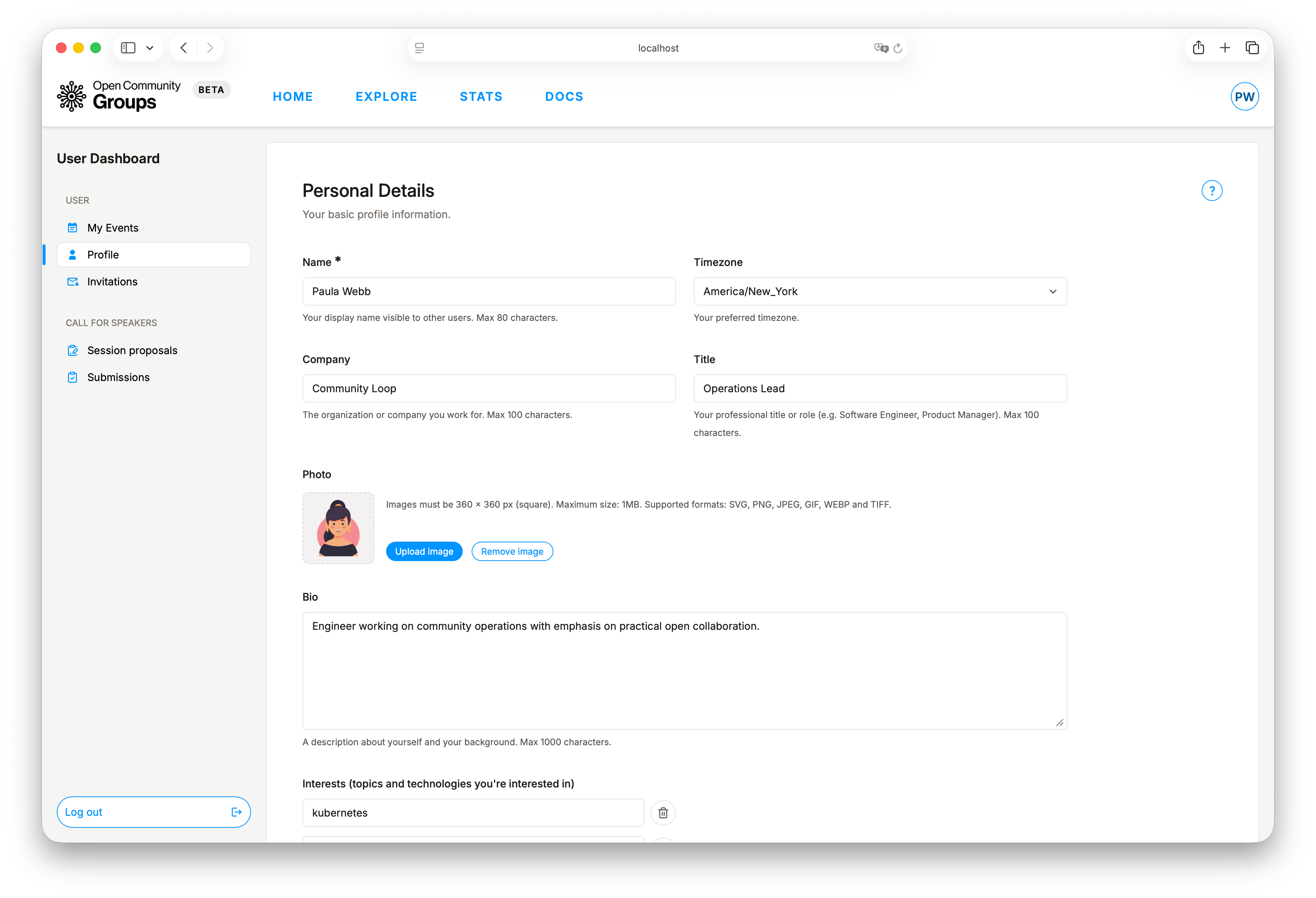
Profile is not just cosmetic. Organizers, co-speakers, and reviewers use this information
when collaborating with you.
You can maintain:
- Personal details: name, timezone, company, title, photo, bio, interests.
- Location: city and country.
- Social links: website, LinkedIn, Bluesky, X, Facebook, GitHub.
- Notification preferences.
Field requirements and limits are shown inline in the dashboard forms while you edit.
Notification preferences:
Receive optional notificationscontrols broader announcements such as new event announcements, event reminders, and custom messages from organizers.- Turning this off suppresses co-host request email but not the in-dashboard request. It does not disable account, direct team/event invitation, registration, speaker, refund, waitlist, cancellation, or reschedule updates.
Invitations: Unlock Organizer Access
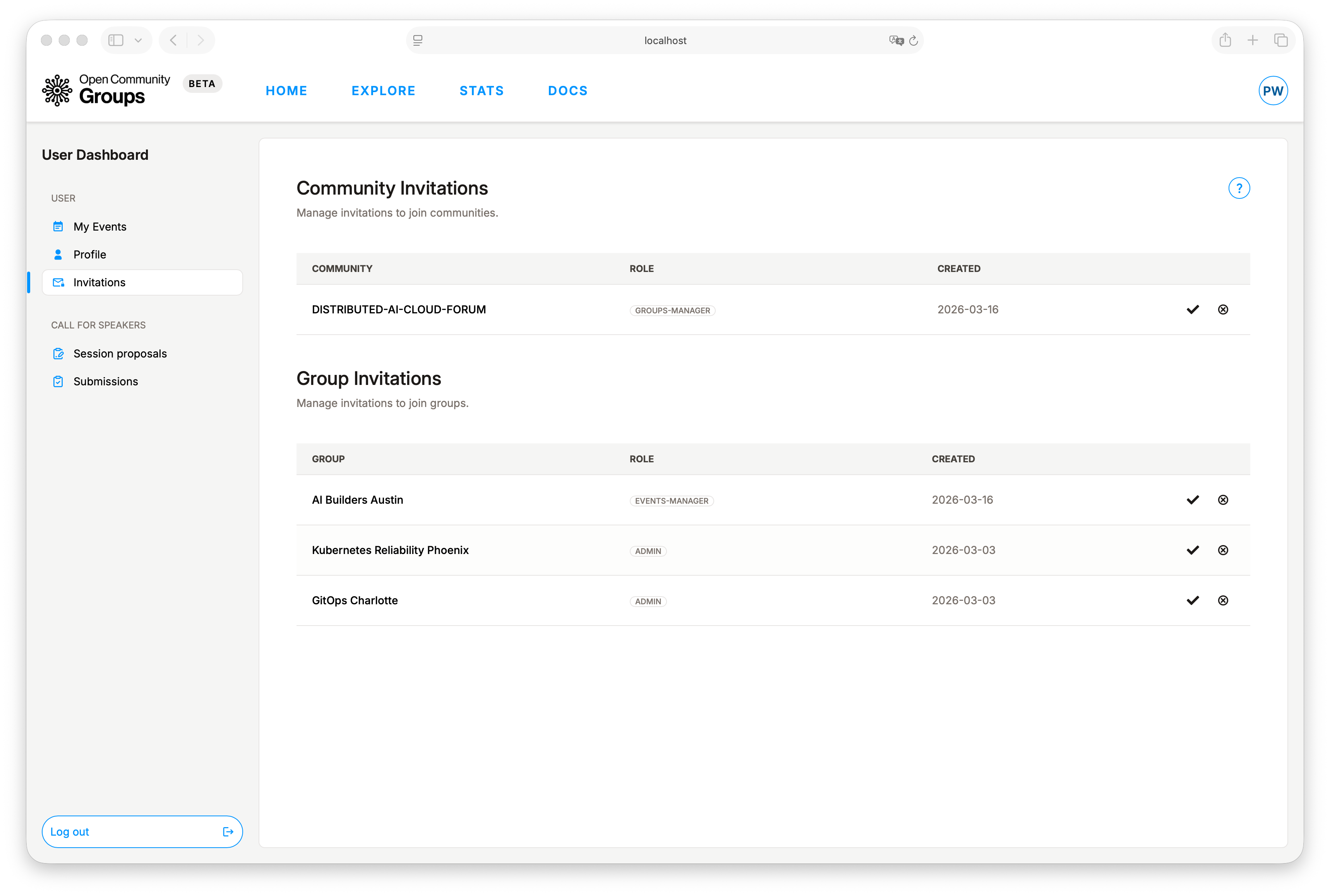
When an alliance or group invites you to help run operations, an organizer invites you to attend an event, or another group asks one of your groups to co-host, the invitation appears here. Accepting an invitation updates your access, confirms event attendance, or approves the co-host relationship.
Invitation statuses:
- Alliance and group team invites: Invitation sent, accepted, rejected.
- Event invitations: Invitation sent, accepted, rejected.
- Co-host invitations: Pending requests appear across every group where you
hold
group.events.write; no selected-group switch is required. - Pending team invites do not grant dashboard access until accepted.
- Invitation rows include the role that will be assigned on acceptance.
- Pending event invitations do not make you an attendee until accepted.
When someone invites you to a team, you receive an in-app and email invitation with a direct path to accept or decline. Eligible organizers also receive an optional email for a pending co-host request. A single organizer receives only one copy even when both alliance and group roles grant the permission.
When someone invites you to an event by email, sign in with GitHub, LinkedIn, or email using the same address the invitation was sent to. A Linux Foundation account is not required. If the email on your GOUP account is different, GOUP cannot connect the invitation to your login and you will not be able to accept it.
Typical post-accept behavior:
- Access is granted to the related scope.
- The assigned alliance/group role becomes active for permission checks.
- Event invitations become confirmed attendance and send the normal event confirmation.
- Co-host approval adds the event to the invited group's co-hosted event surfaces.
- Pending invitation state clears.
- A refresh or re-login may be needed before navigation updates.
If organizer dashboards still do not appear, see Choose Your Dashboard and Troubleshooting.
Session Proposals: Reusable Talks
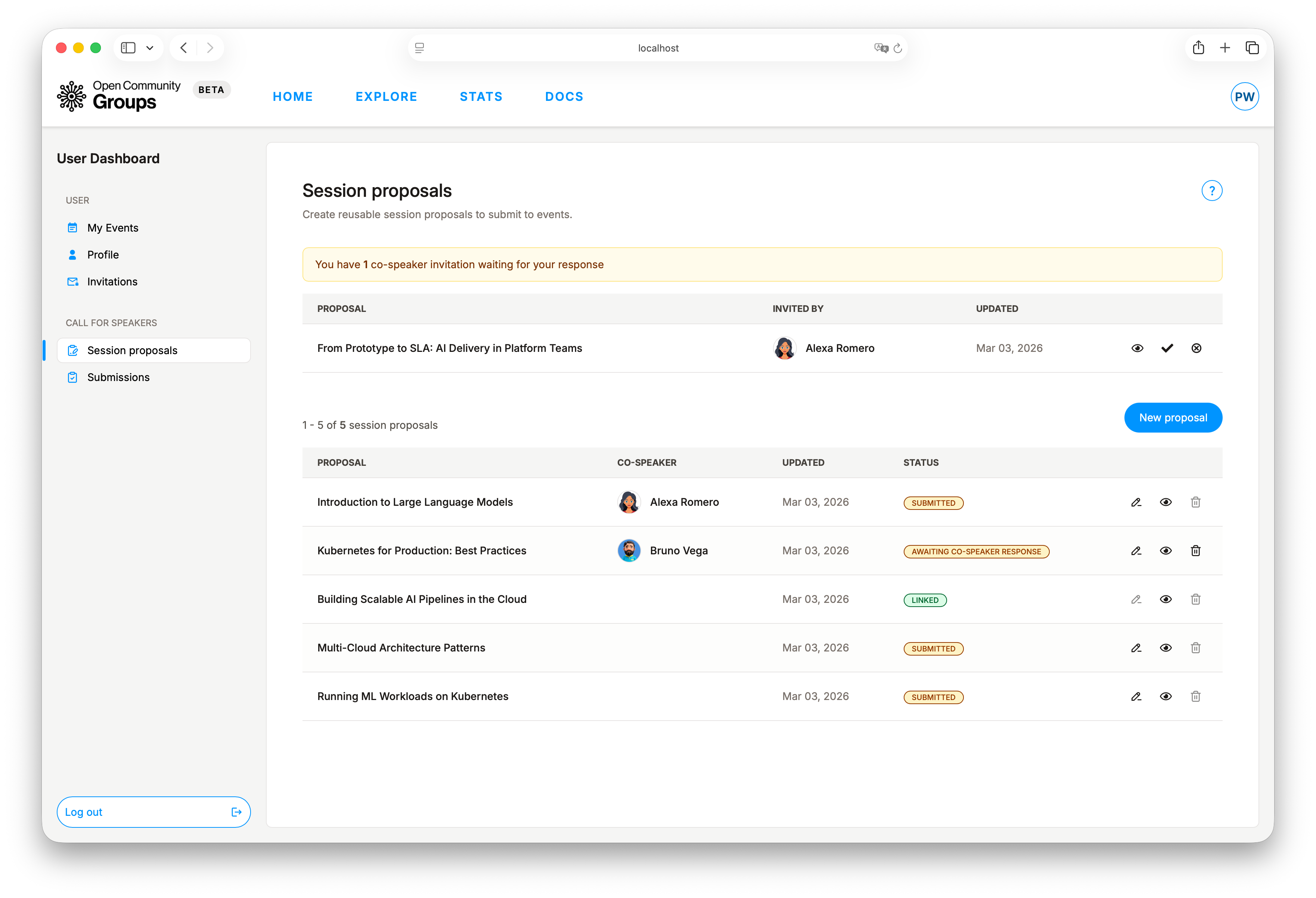
Session proposals is where you manage talk proposals you can reuse across
events. This helps you keep your talk content consistent while submitting to
different events.
Create flow:
- Click
New proposal. - Complete required fields (
Title,Level,Duration,Description). - Optionally add a co-speaker by username search.
- Save and reuse the proposal in eligible event CFS flows.
For event-side CFS controls and reviewer operations, see Event Operations.
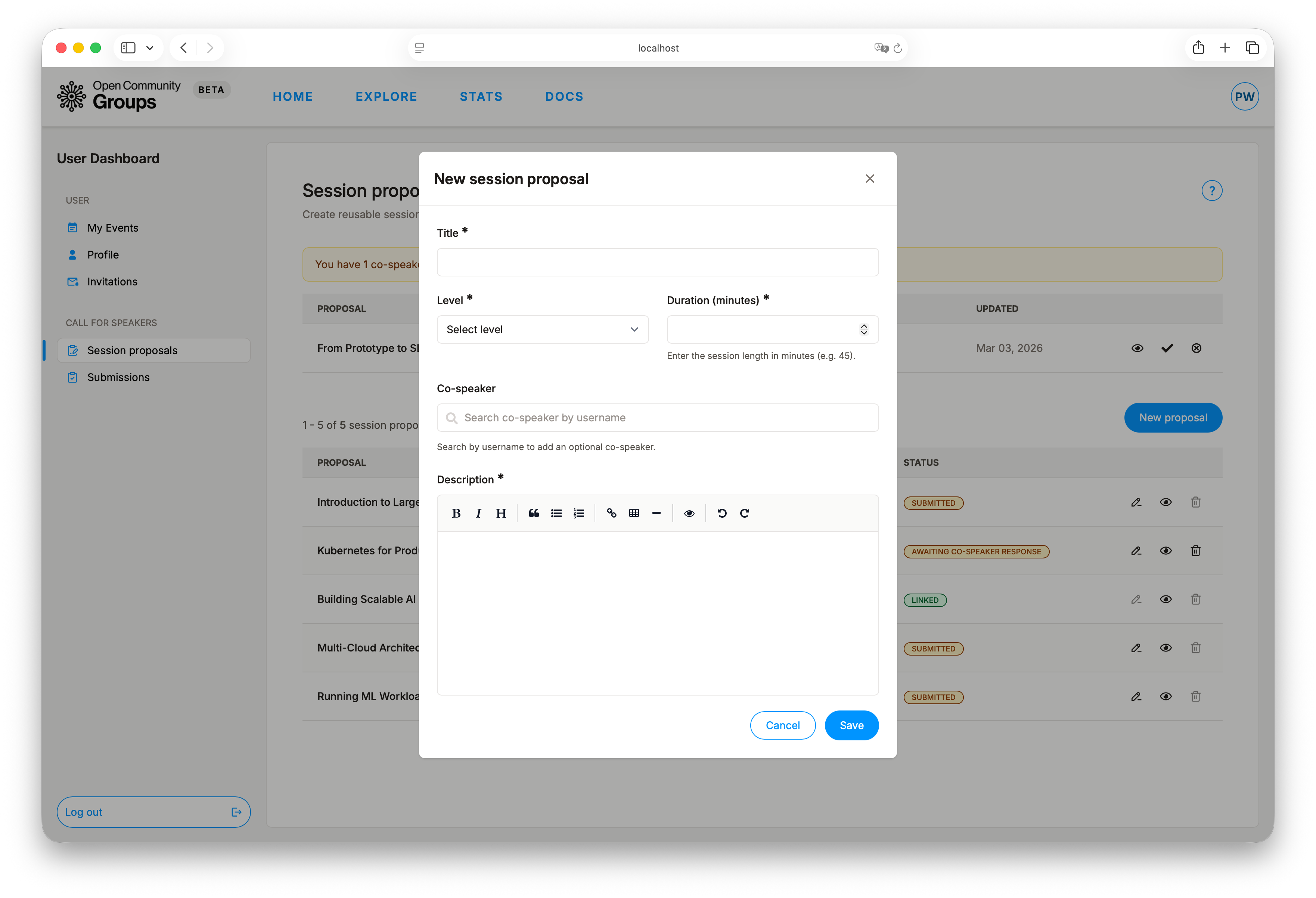
Proposal Status Model
Base statuses:
Ready for submissionAwaiting co-speaker responseDeclined by co-speaker
Derived badges may also appear:
Submitted(used in one or more event submissions).Linked(already tied to an approved session).
When a Proposal Gets Locked
!> Linked proposals cannot be edited. Submitted proposals can still be
updated, but delete and some co-speaker changes are blocked.
Linkedis a hard lock. Once a proposal is linked to an accepted event session, it is treated as delivery content and can no longer be edited in place.Submittedis a partial lock. You can still improve most proposal content, but some operations become constrained because the proposal is already in review history:- Delete is blocked.
- Co-speaker changes are restricted after submission.
Status-related submission locks:
Awaiting co-speaker responseandDeclined by co-speakerare not full edit locks, but they do block CFS submission eligibility until co-speaker state is resolved.
Co-Speaker Invitations
If another speaker invites you as co-speaker, OCG shows an in-app alert with actions to view, accept, or decline. This keeps proposal ownership clear without hidden side effects.
Co-speaker invite statuses appear with your proposal workflow: pending, accepted, or declined.
Submissions: Track and Respond
Once you submit a proposal from an event page, Submissions becomes your control center for
review progress.
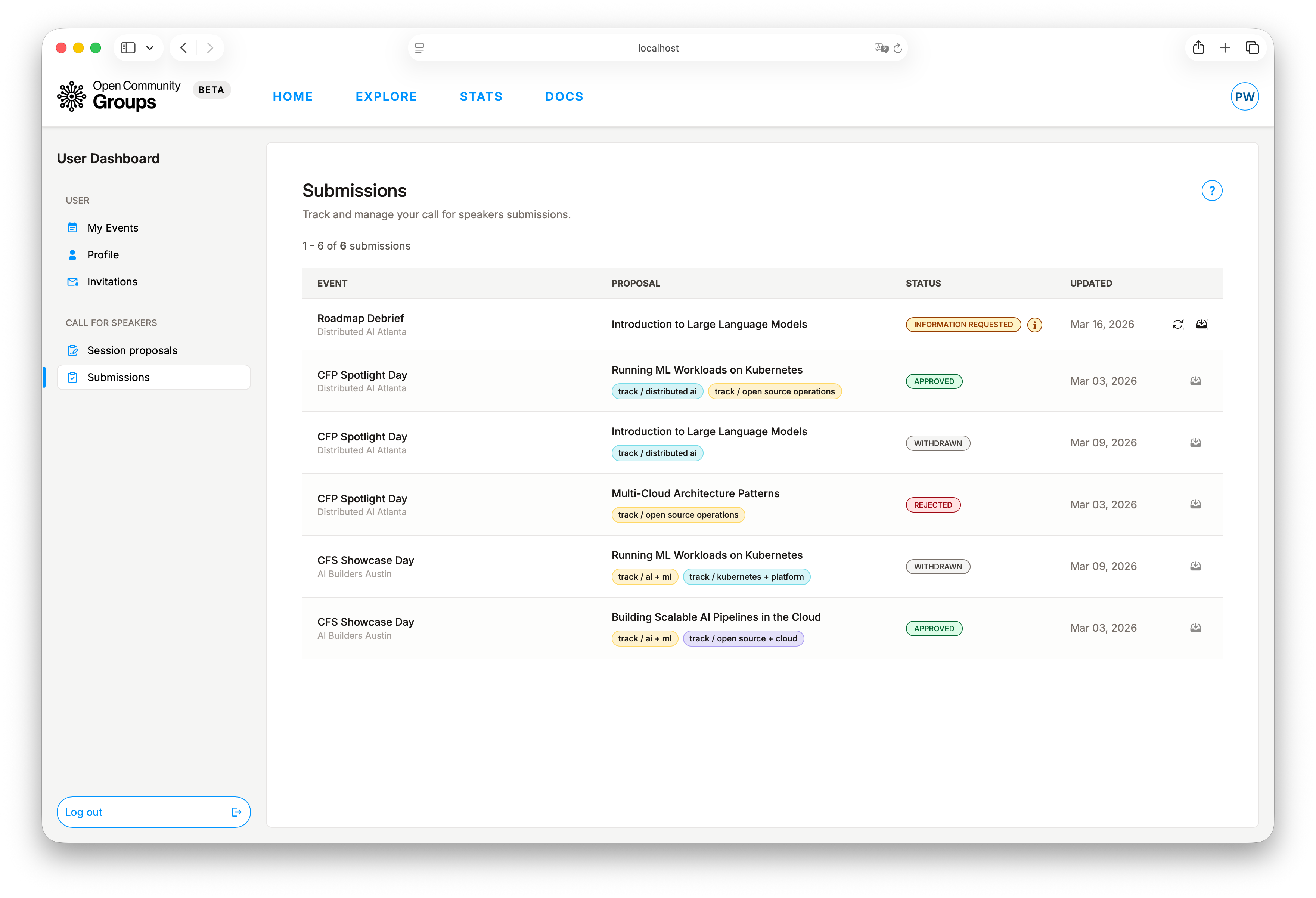
Common statuses:
Not reviewedInformation requestedApprovedRejectedWithdrawn
Action behavior:
Resubmitappears when status isInformation requested.Withdrawstays available while the submission is active and not finalized.- Withdraw is blocked for finalized or linked outcomes.
When organizers change your submission review state, OCG sends an update message with the new status and any action you need to take.
To understand where submission decisions are made, see Event Operations.
Audit: Logs
AUDIT -> Logs is the last section in the left dashboard menu. It provides an actor-based audit
trail for actions you performed from the user dashboard and account settings.
Coverage in this view includes:
- Invitation accept and reject actions.
- Session proposal create, update, delete, and co-speaker invitation decisions.
- Submission resubmits and withdrawals.
- Account profile and password updates.
Table behavior:
- Rows are ordered by newest first by default.
- You can filter by
Actionand date range. - You can switch ordering between newest first and oldest first.
- Pagination keeps the active filters applied.
Detailsopens a popover when an audit row has extra metadata.
Scope note:
- This screen shows actions performed by the signed-in user.
- It does not try to list unrelated actions performed by other people against your account.
Recommended Working Rhythm
?> Review this list regularly so invitations and submission deadlines do not catch you by surprise.
- Keep profile current (especially bio, timezone, and links).
- Track
My Eventsto stay ahead of upcoming commitments. - Clear invitations quickly so role-based access stays accurate.
- Build reusable proposals before deadlines.
- Submit to events where CFS is open.
- Watch
Submissionsand respond fast when information is requested.