Alliance Dashboard Guide
Use the Alliance Dashboard to manage alliance-wide settings and operations: identity, governance, taxonomy, team access, analytics, and groups.
If you are deciding workspace scope first, read Choose Your Dashboard.
Path: /dashboard/alliance
Sections:
- What This Dashboard Owns
- Access and Context
- Creating and Managing Multiple Alliances
- Roles and Permissions
- Settings: Alliance Identity
- Team: Alliance Access
- Regions: Geographic Scope
- Group Categories: Group Taxonomy
- Event Categories: Event Taxonomy
- Analytics: Momentum
- Groups: Portfolio
- Audit: Logs
- Recommended Cadence
What This Dashboard Owns
Use the alliance scope to manage the structure shared by all groups. You are not running one event here; you are shaping how the whole alliance is presented and managed.
Main areas:
- Settings: alliance identity, branding, social presence, and long-form content.
- Team: alliance-level admins and invitation flow.
- Regions: alliance geography model for group classification.
- Group Categories: reusable taxonomy for groups.
- Event Categories: reusable taxonomy for events.
- Analytics: alliance growth trends and volume metrics.
- Groups: group creation, maintenance, activation state, and lifecycle transitions.
- GTM: alliance-wide lead pipeline. Agents draft outreach and stage recommendations; organizers approve every move.
- Logs: read-only audit trail for alliance dashboard actions.
Access and Context
You are ready to work in this dashboard when:
- You are logged in.
- Your account is on the alliance team.
- A alliance is selected in dashboard context.
If no alliance is selected yet, some actions stay unavailable until you choose one.
For invitation acceptance and dashboard access, see User Dashboard Guide.
Creating and Managing Multiple Alliances
Multiple alliances are supported. Use this when GOUP needs separate public identities, teams, groups, categories, regions, and brand pages for different communities.
Only platform admins can create a new alliance.
Make a User a Platform Admin
Platform admin is a user-level flag in the database. On a Docker deployment, connect to the Postgres container and update the user:
docker exec -it goup-postgis psql -U postgres
Then in psql:
\c ocg
update "user"
set platform_admin = true
where username = 'your-username';

select username, platform_admin
from "user"
where username = 'your-username';
The result should show platform_admin as t. Sign out and sign back in so the dashboard reloads
the user permissions.
Create the Alliance
After signing in as a platform admin:
- Open Alliance Dashboard.
- Select
Create Alliancefrom the sidebar. - Fill the alliance basics and submit.
The direct dashboard tab is:
/dashboard/alliance?tab=create-alliance
The create form loads from:
/dashboard/alliance/create
Where the New Alliance Appears
After creation, the new alliance appears in the Alliance Dashboard context selector/list. Use the selector to switch between alliances before managing settings, groups, taxonomy, team access, or analytics.
Publicly, an alliance is available at its slug path:
/{alliance-name}
For example:
/goup
First Setup Checklist
For each new alliance, configure these before inviting many users:
Settings: display name, description, logo, banner, social links, and brand content.Team: add at least one accepted allianceadmin.Regions: add the geography values groups will use.Group Categories: add the categories shown in group setup and Explore filters.Event Categories: add the event taxonomy organizers will use.Groups: create or import the first active groups.
!> Keep at least one accepted alliance admin per alliance. The app blocks removing or demoting the final accepted admin.
Roles and Permissions
Alliance role permissions are fixed and enforced by middleware plus database checks:
| Alliance role | Alliance read | Groups | Settings | Taxonomy | Team |
|---|---|---|---|---|---|
admin |
Yes | Write | Write | Write | Write |
groups-manager |
Yes | Write | Read only | Read only | Read only |
viewer |
Yes | Read only | Read only | Read only | Read only |
Alliance role impact on group-level operations in the same alliance:
adminandgroups-managercan perform group write operations (events,members,settings,sponsors,team) without needing group-team role assignment.- If
Restrict group team managementis enabled in alliance settings, group team management (team) is limited to allianceadminandgroups-managerroles. viewerkeeps read-only visibility.
UI behavior:
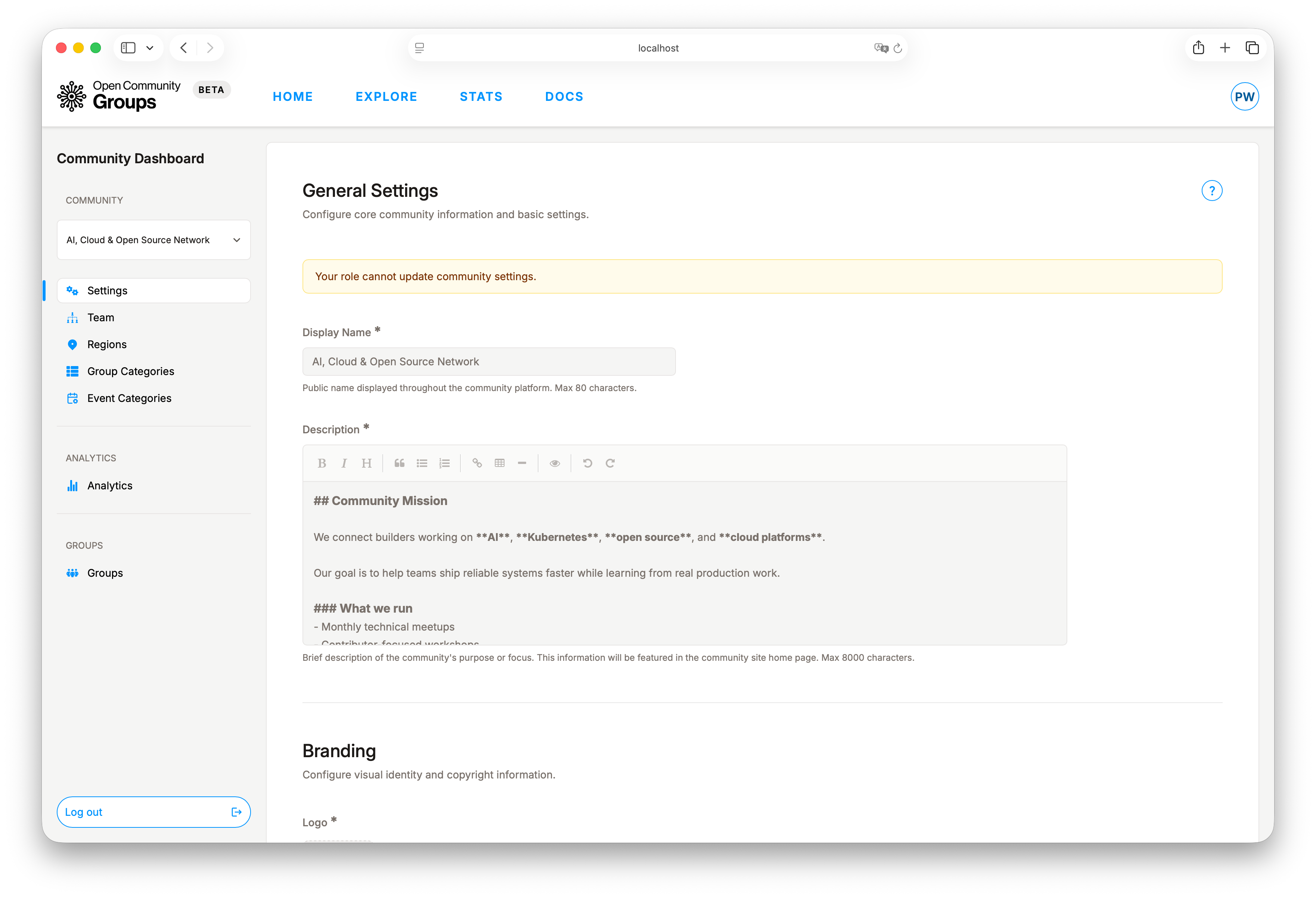
- When your role cannot perform an action, controls are disabled.
- Server-side authorization blocks unauthorized requests.
Settings: Alliance Identity
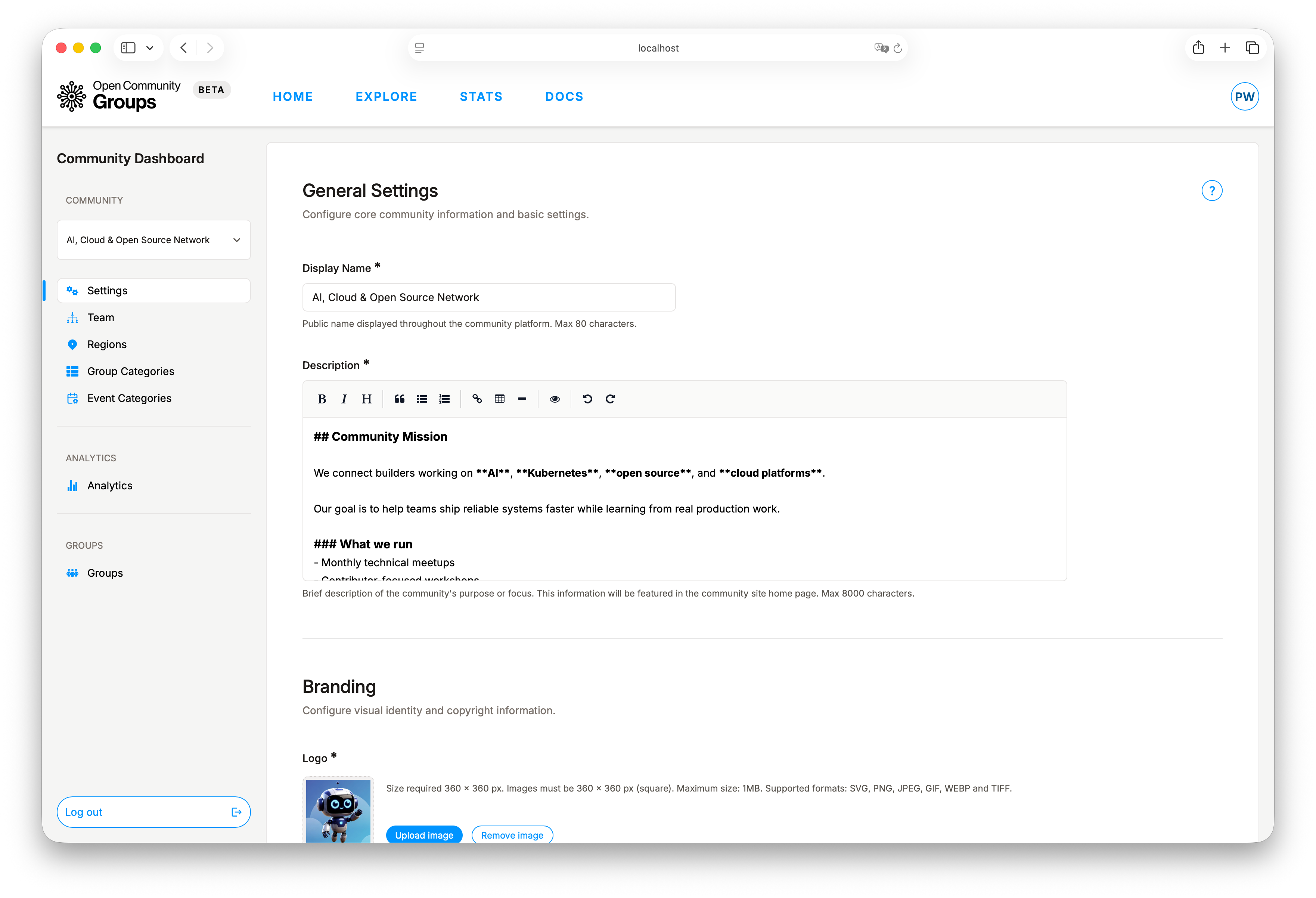
Settings is where you shape how the alliance appears publicly and how organizers enrich it over
time.
Key sections include:
- General Settings.
- Branding.
- Social Links.
- Advertisement.
- Additional Content.
Common use cases:
- Keeping display name and description up to date.
- Restricting group team management to alliance admins and groups managers when policy requires it.
- Maintaining logo, banner, and Open Graph preview assets for consistent presentation.
- Managing social links, optional ad placements, gallery images, tags, and extra links.
Advertisement settings are alliance-wide. When a banner image is configured, OCG shows it on the public alliance page and as a floating banner on public group and event pages for that alliance. The optional banner link URL makes the banner clickable.
Field requirements, character limits, and list limits are shown inline in the settings UI.
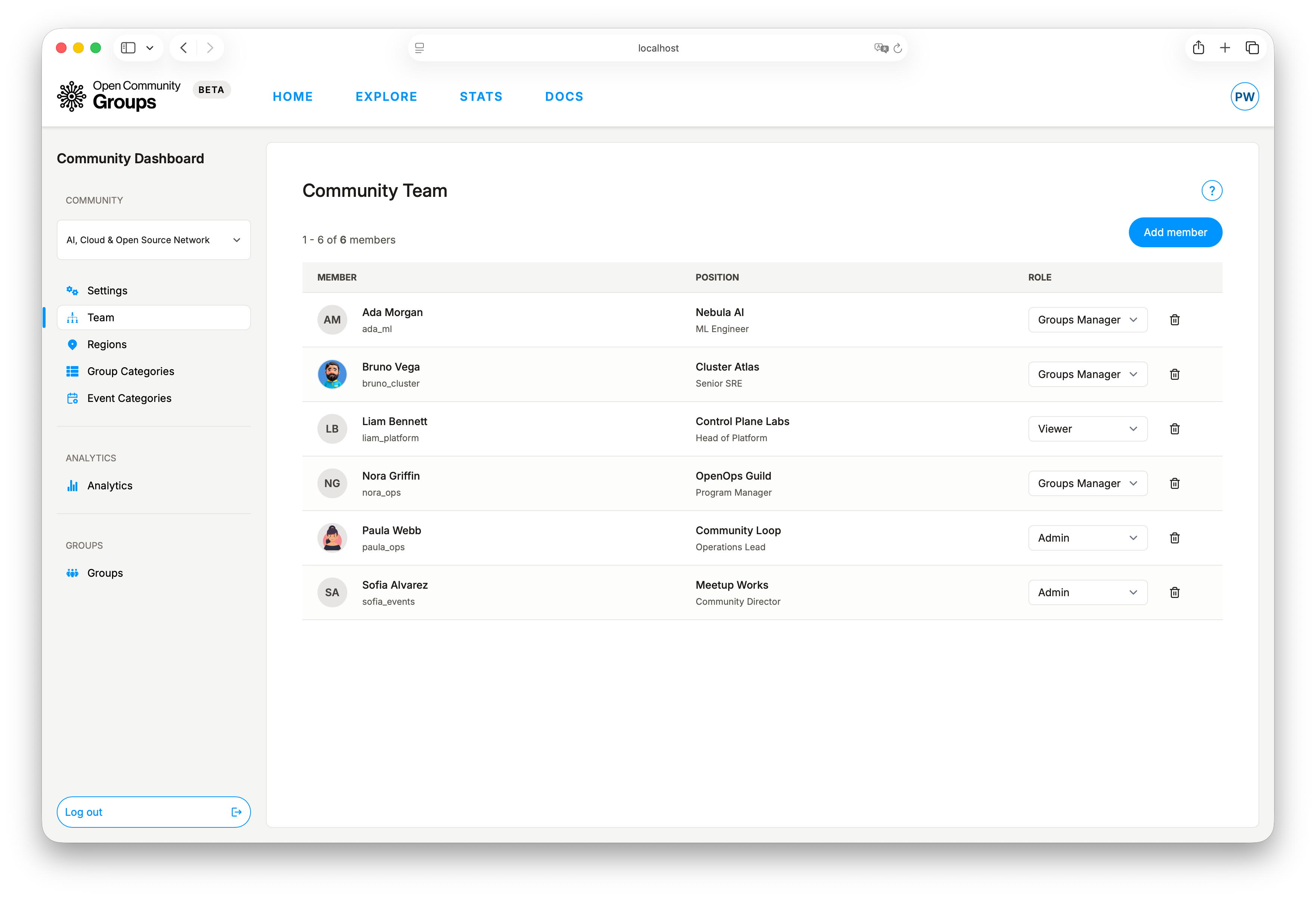
Team: Alliance Access
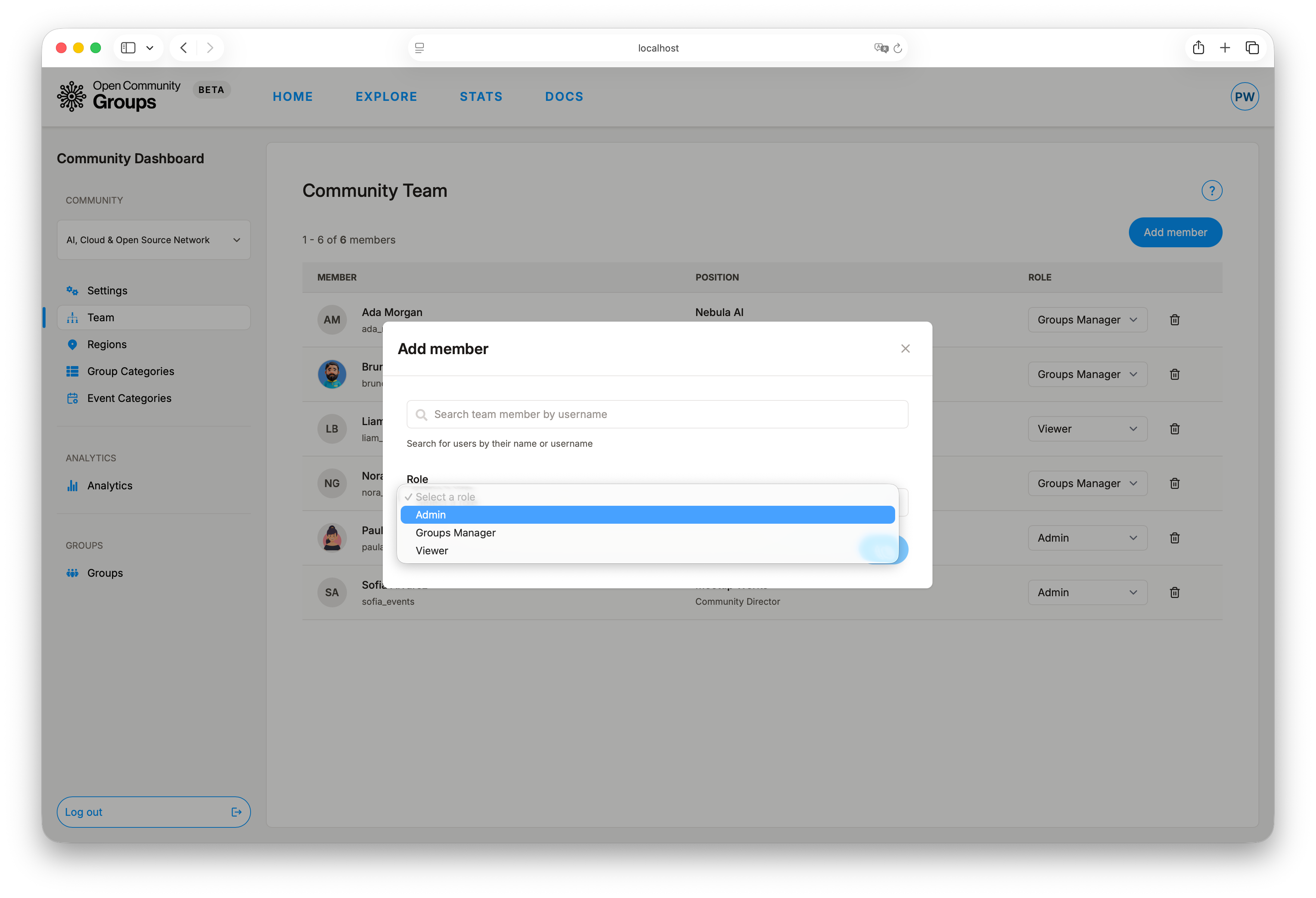
Use Team to invite members with a alliance role, update existing roles, or remove members.
Current assignable roles:
admingroups-managerviewer
Safety rules:
- OCG blocks removing the final accepted alliance admin.
- OCG blocks demoting the final accepted alliance admin to a non-admin role.
!> The final accepted alliance admin cannot be removed or demoted. Add another accepted member first, then retry removal.
Pending states are visible (Invitation sent) so you can tell the difference between invited and
fully active collaborators.
When you add a team member, OCG sends an invitation with a direct link to User Dashboard -> Invitations.
Regions: Geographic Scope
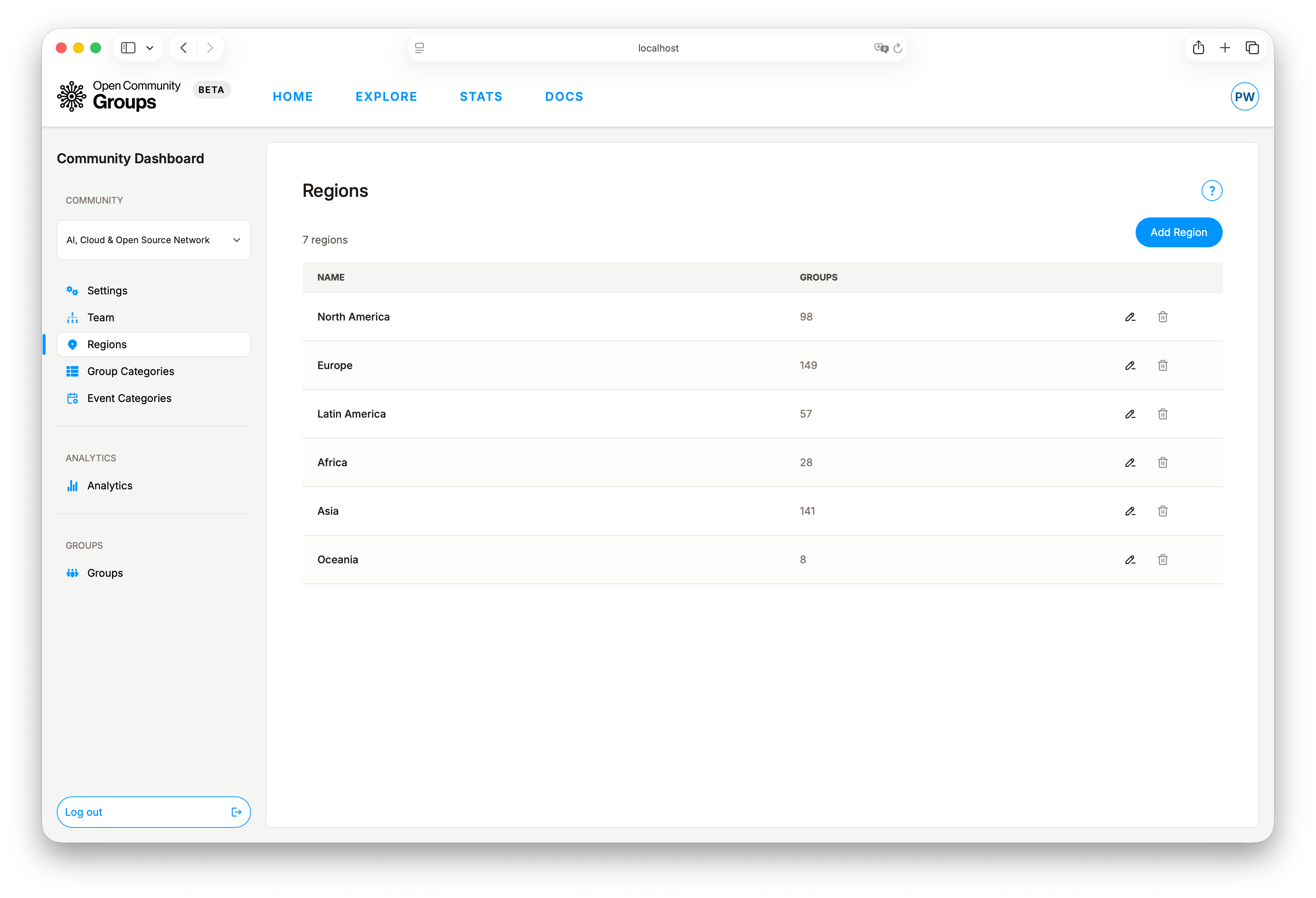
Regions is the alliance-level geography list used by groups.
You can:
- Add regions.
- Rename existing regions.
- Delete retired regions.
Operational rules:
- Region names must be unique within the selected alliance.
- Deletion is blocked when one or more groups still use that region.
- The table shows a
Groupscount to make dependencies visible before cleanup.
Where this appears downstream:
- Group setup/edit forms select region values from this list.
- Public discovery and filtering can use region as a search dimension.
Group Categories: Group Taxonomy
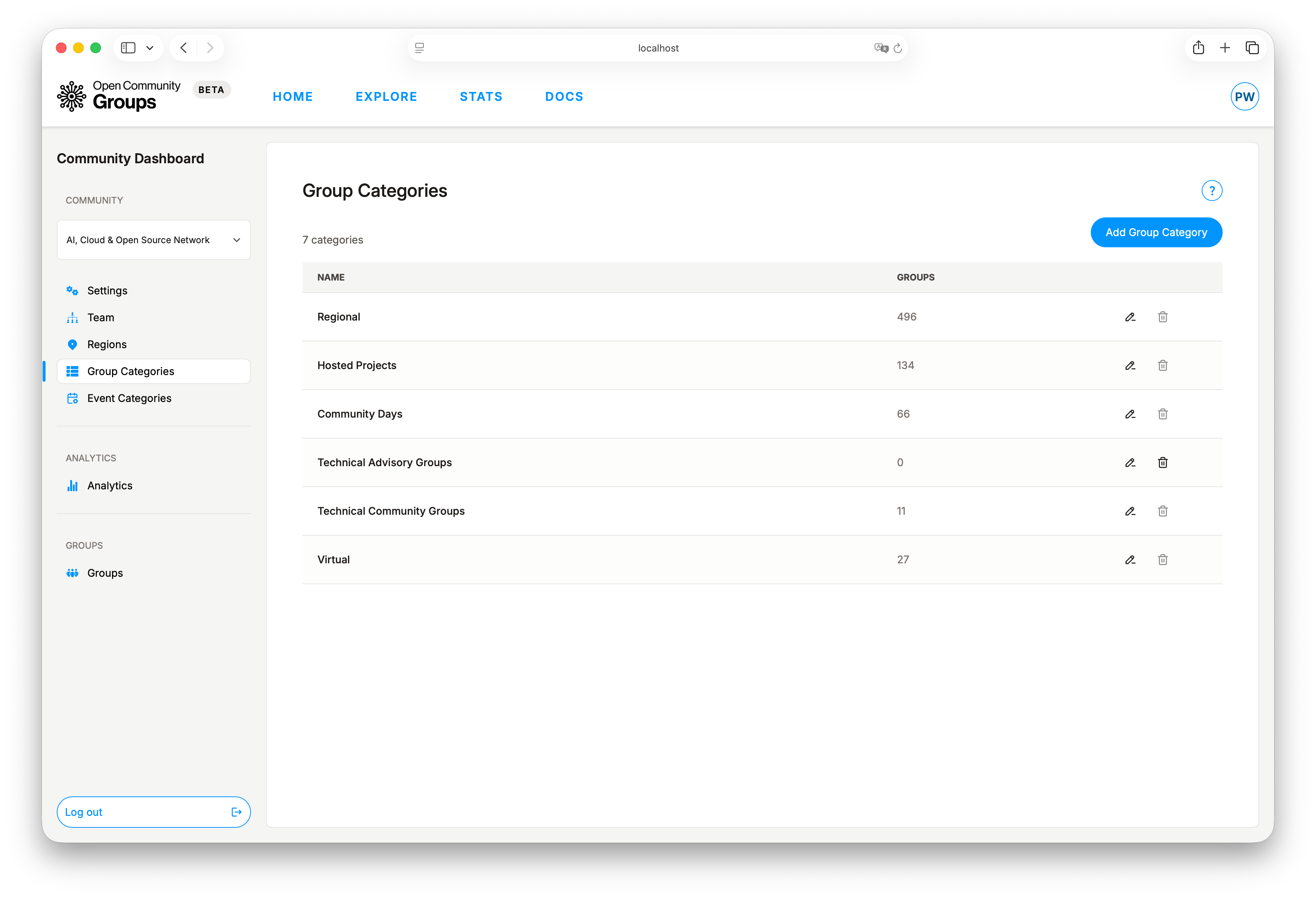
Group Categories defines reusable category values for all groups in the selected alliance.
You can:
- Add group categories.
- Rename existing categories.
- Delete unused categories.
Operational rules:
- Group category names must be unique within the selected alliance.
- Deletion is blocked when one or more groups still use that category.
- The table shows a
Groupscount per category for dependency checks.
Where this appears downstream:
- Group setup/edit forms select category values from this list.
- Public discovery and filtering can use group category as a search dimension.
Event Categories: Event Taxonomy
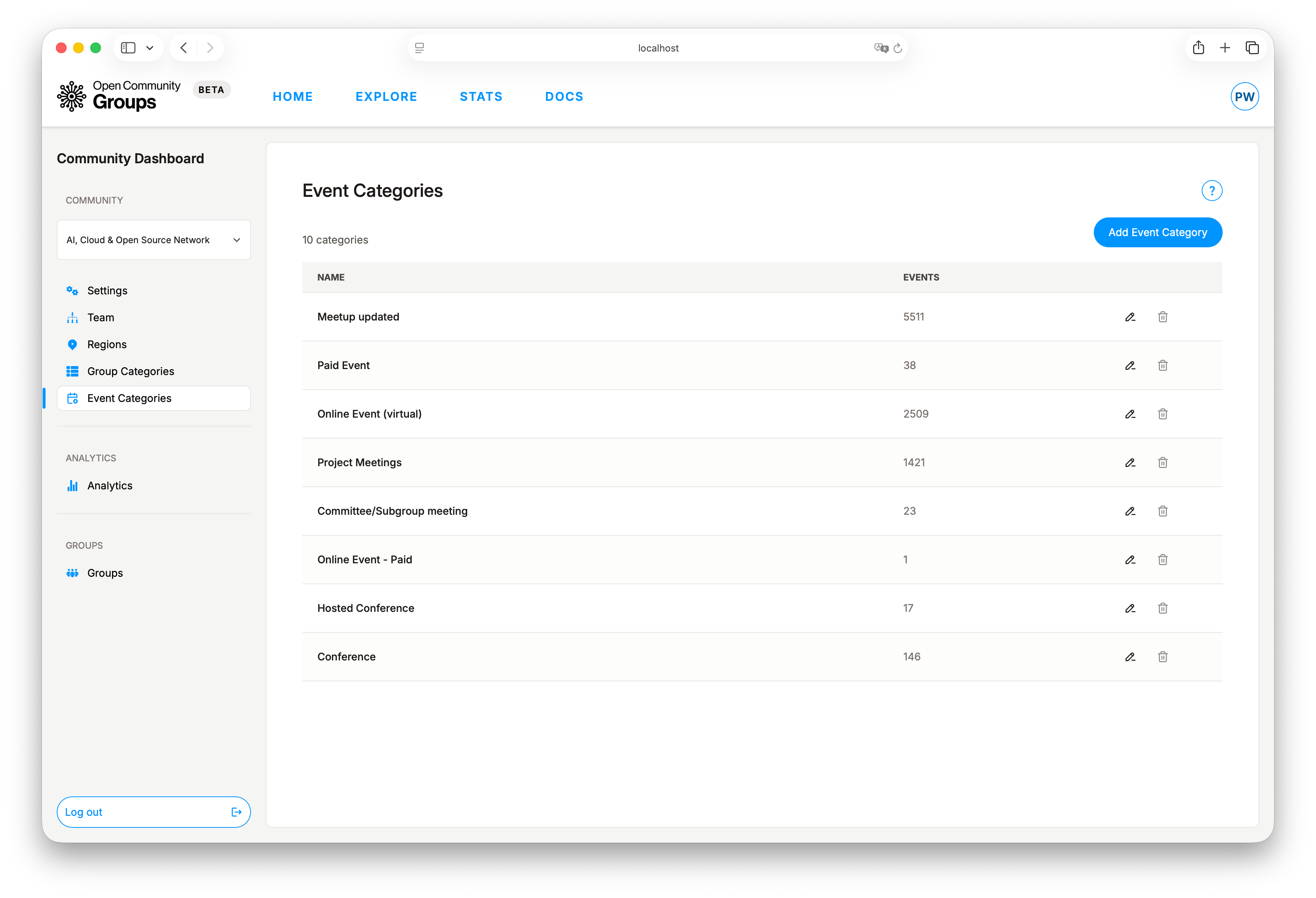
Event Categories defines reusable category values for events across the selected alliance.
You can:
- Add event categories.
- Rename existing categories.
- Delete unused categories.
Operational rules:
- Event category names must be unique within the selected alliance.
- Deletion is blocked when one or more events still use that category.
- The table shows an
Eventscount per category for dependency checks.
Where this appears downstream:
- Event editor (
Detailstab) uses this list for event categorization. - Public event discovery and filtering can use event category.
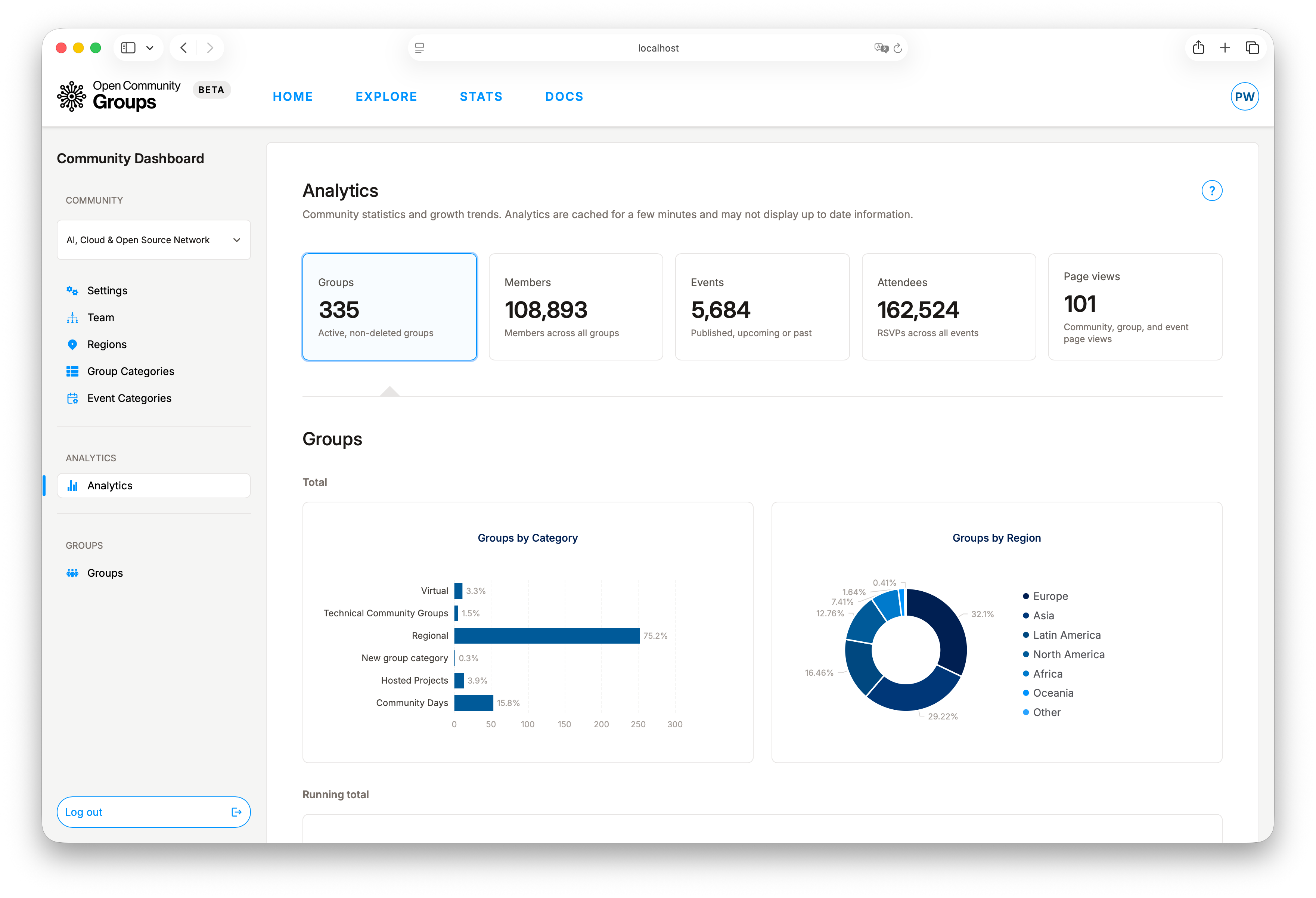
Analytics: Momentum
Alliance analytics shows totals and trends for:
- Groups.
- Members.
- Events.
- Attendees.
- Page views for the alliance page, all group pages, and all event pages.
Each metric is available as total, running total, and monthly values. This helps you spot steady progress and notice unusual jumps with better context.
The Page views tab starts with total alliance, group, and event page views, then breaks
views down by page type with daily charts for the last month.
Analytics data is cached and may lag for a few minutes.
Groups: Portfolio
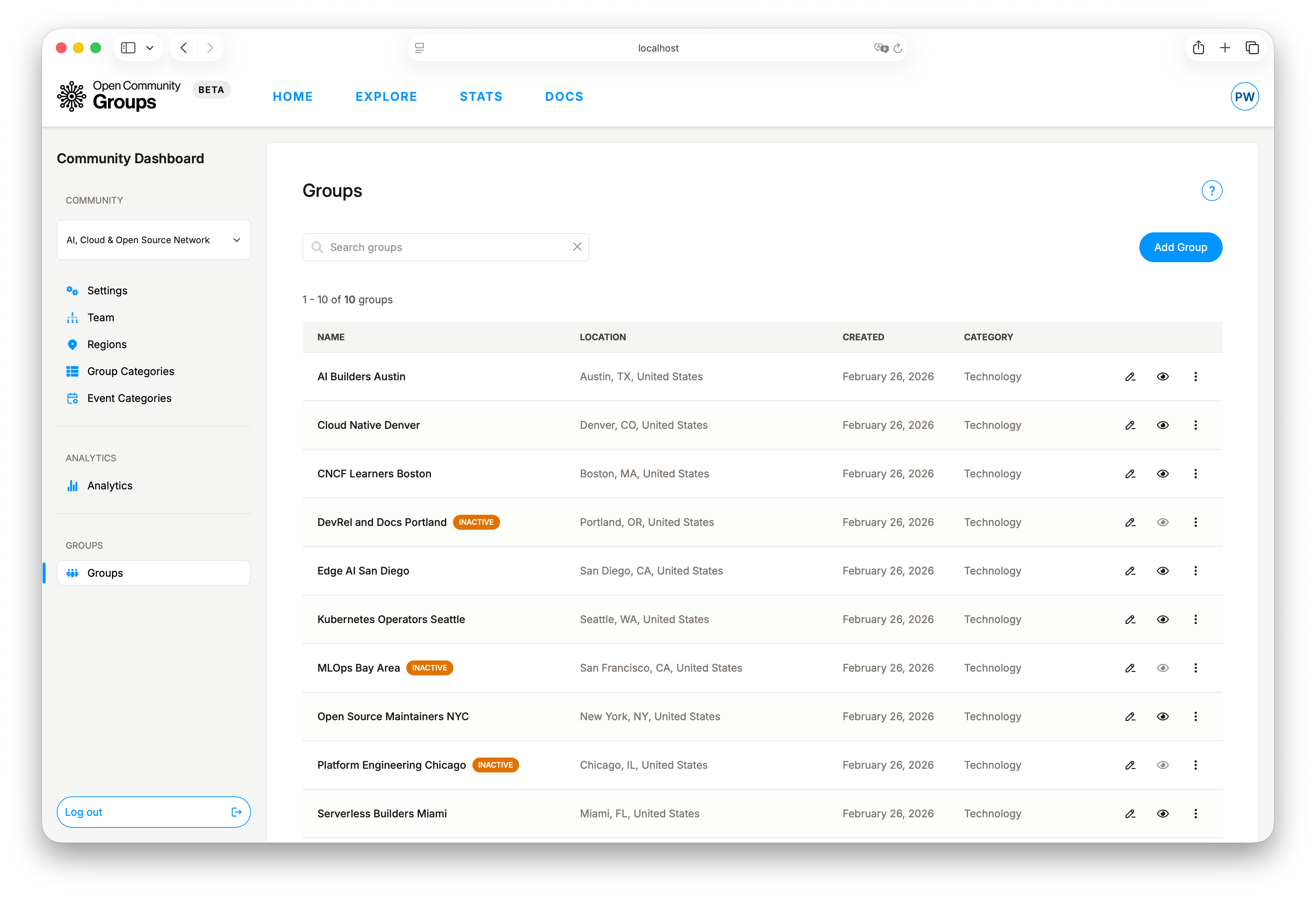
Groups is where alliance leads create and maintain the collection of groups under the
alliance umbrella.
Group records rely on taxonomy values from alliance-level Regions and Group Categories.
You can:
- Search groups.
- Add or update groups.
- Activate/deactivate groups.
- Delete retired groups.
- Open a group in Group Dashboard for deeper operational work.
For execution workflows inside a specific group, continue with Group Dashboard Guide.
Activity states:
Active: group is available for normal public participation.Inactive: group is paused and can be reactivated later.
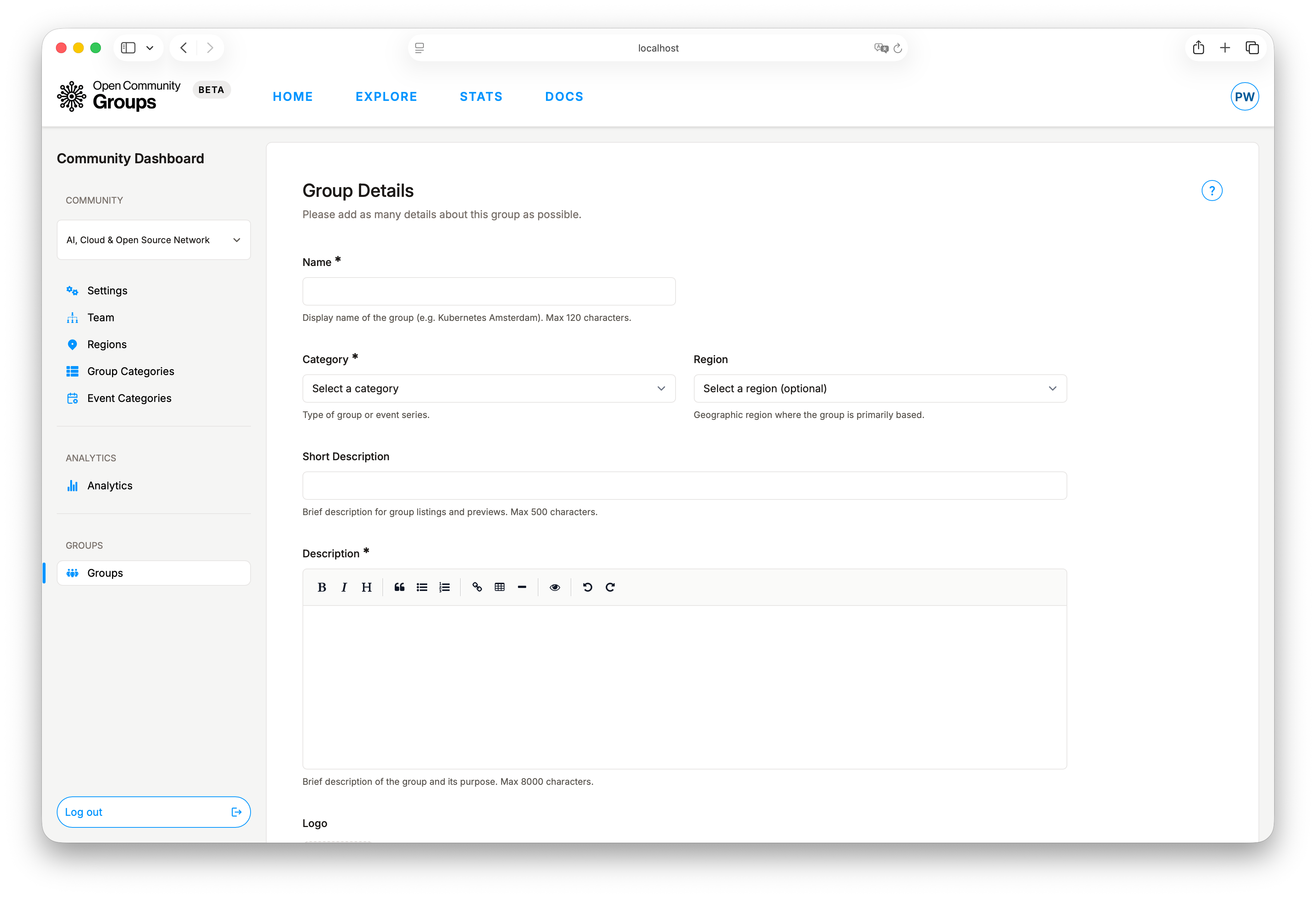
When creating a new group, Add Group starts with the basics first. Then you can add branding,
location, links, and optional content before launch.
Group-branding inheritance from this flow:
- If group logo is empty, the public group view uses the alliance logo.
- If group banner/mobile banner is empty, the public group view uses the alliance banner.
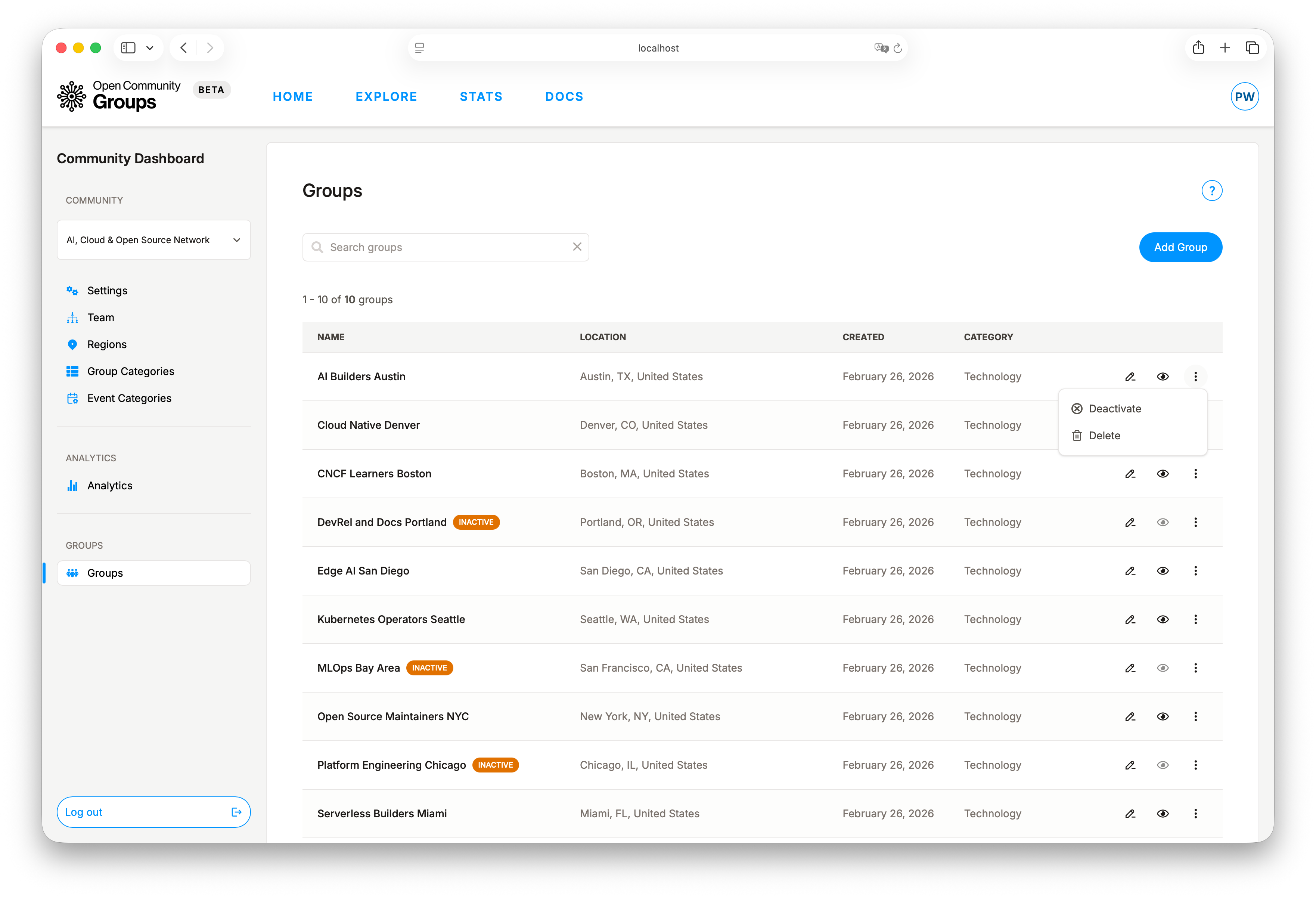
Group Lifecycle
Activaterestores visibility and operational flow.Deactivatepauses activity while preserving metadata.
Audit: Logs
AUDIT -> Logs is the last section in the left dashboard menu. It gives alliance leads a
read-only activity stream for alliance dashboard operations.
Coverage in this view includes:
- Alliance settings updates.
- Alliance team membership changes, including invitation accept and reject outcomes.
- Region, group category, and event category changes.
- Group portfolio actions done from the alliance dashboard, including add, activate, deactivate, delete, and update.
Table behavior:
- Rows are ordered by newest first by default.
- You can filter by
Action,Actor, and date range. - You can switch ordering between newest first and oldest first.
- Pagination keeps the active filters applied.
Detailsopens a popover when an audit row has extra metadata.
Target display behavior:
- OCG shows the resource type plus the current resource name.
- If the current resource row no longer exists, the audit row still remains and falls back to the name snapshot stored with the entry when available, or to the stored resource identifier.
Scope note:
- This screen is alliance-dashboard focused.
- Some overlapping actions, such as
group_updated, can also appear in the group dashboard audit view when they match that dashboard's accepted scope. Deleteis permanent retirement for groups that should no longer exist operationally.
When a group is inactive, its public-view shortcut is disabled in the groups table.
Recommended Cadence
?> Use a recurring monthly or biweekly rhythm so identity, access, and group structure stay healthy.
- Review Settings monthly for brand accuracy.
- Keep Team membership current to avoid operational bottlenecks.
- Review Regions so geography labels stay clean and useful.
- Review Group Categories to avoid stale taxonomy.
- Review Event Categories as event programs evolve.
- Check Analytics on a regular cadence for trend shifts.
- Use Groups to retire stale structures and support active ones.
For event lifecycle operations after handoff to group teams, see Event Operations.